
Coinsnap for Shopware payment plugin
If you run a Shopware-based online store, integrating Bitcoin and Lightning payment options is easy with the Coinsnap Shopware plugin.
Simply install the Coinsnap Shopware plugin on Shopware version 6 or higher, link it to your Coinsnap account, and your customers will have the option to pay with Bitcoin and Lightning.
All incoming Bitcoin payments are immediately forwarded and added to your Lightning Wallet. The Coinsnap Shopware plugin, developed by Coincharge, is compatible with both BTCPay Server and Coinsnap for connectivity.

If you don’t want to install the Coinsnap for Shopware plugin yourself, Coinsnap can do it for you.
Use the free Coinsnap Integration Service for this.
If you open a Coinsnap account and have entered your Lightning address, you can commission Coinsnap with the integration.
Information about the Coinsnap Integration Service for Shopware can be found here.
Shopware Demo Store

You can see how a payment with Bitcoin and Lightning works in a Shopware store from the payer’s point of view in the Coinsnap Shopware Demo Store and try it out for yourself at this link.
(1) Choosing demo T-shirt product
When you open our demo store, go to the product area.
(1) Choosing demo T-shirt product
Select a product number (1) or number (2).

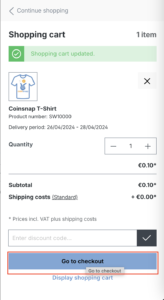
After you have selected our test product, go to the checkout to test payments with Lightning/Bitcoin via Coinsnap.
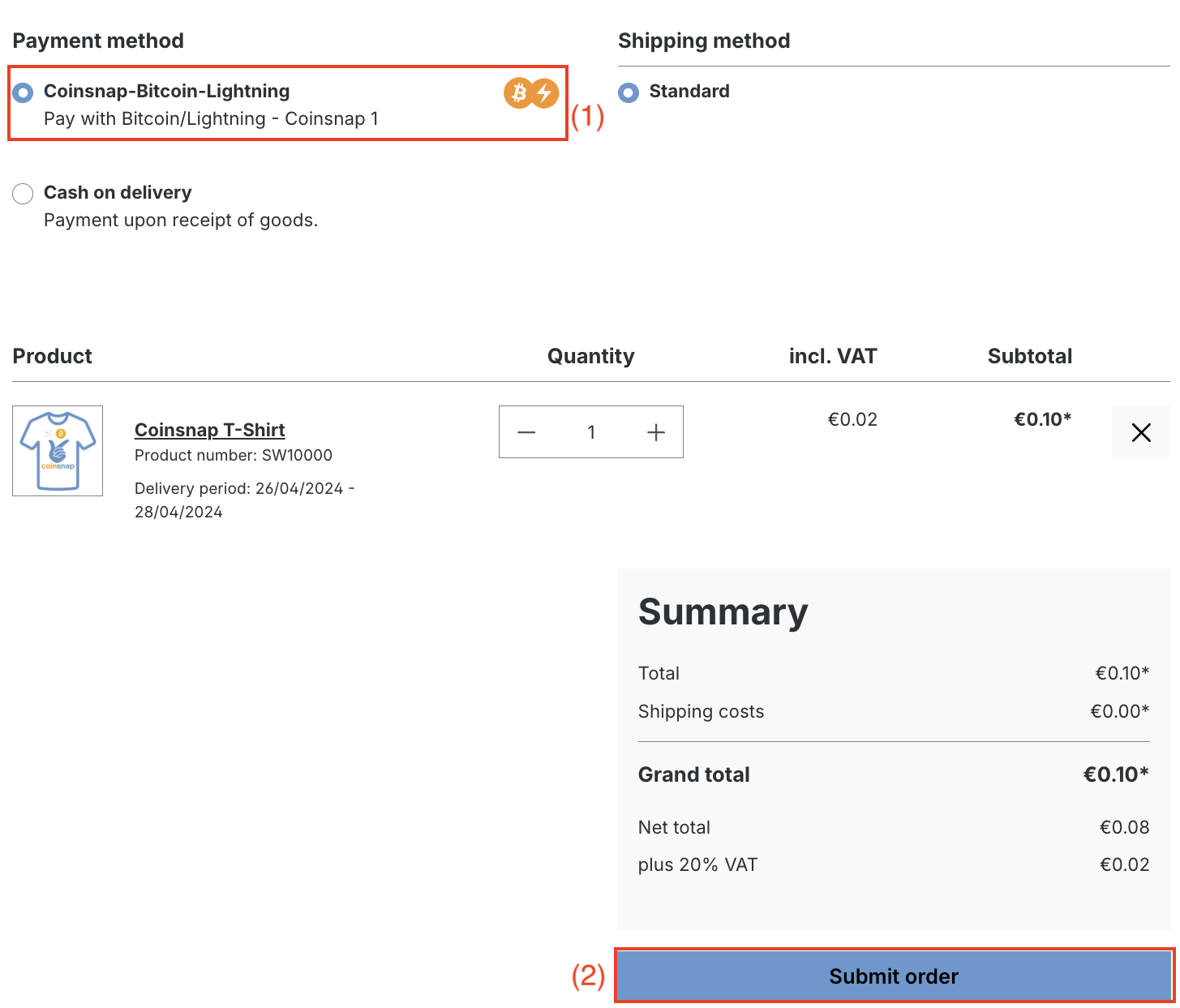
Once you have entered your details, you will be redirected to the payment method selection screen:
(1) Coinsnap Bitcoin/Lightning
Choose the option to pay with Bitcoin and Lightning via Coinsnap.
(2) Send order
Click on Submit order to finalise the test payment.
After you have submitted your order, you will receive a QR code that you should scan with your wallet. Scan and pay with Bitcoin and Lightning via Coinsnap!
Install Coinsnap for Shopware with Github
Github installation method
The Shopware Coinsnap plugin can be used to connect to the BTCPay server and Coinsnap. This plugin is no longer available via the Shopware Marketplace, as Shopware has changed its business policy and charges a fee and a revenue share for the listing. In order not to pass on these costs to our customers and to be able to continue to provide the plugin free of charge, the Shopware plugin is still available on Github without restrictions.
We explain here how you can install the Coinsnap Shopware plugin via Github.

Download Coinsnap plugin for Shopware at Github
Coinsnap Github page
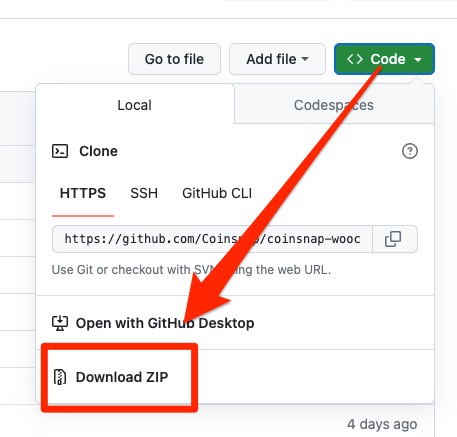
Visit the Coinsnap Github page where you will find all the payment plugins provided by Coinsnap. Go to Coinsnap for Shopware. There you will find the green button labeled Code. When you click on it, the menu opens and Download ZIP appears. Here you can download the latest version of the Coinsnap plugin to your computer.
Connect Shopware to Coinsnap
As soon as a Coinsnap account has been set up, we can start connecting Shopware to Coinsnap.
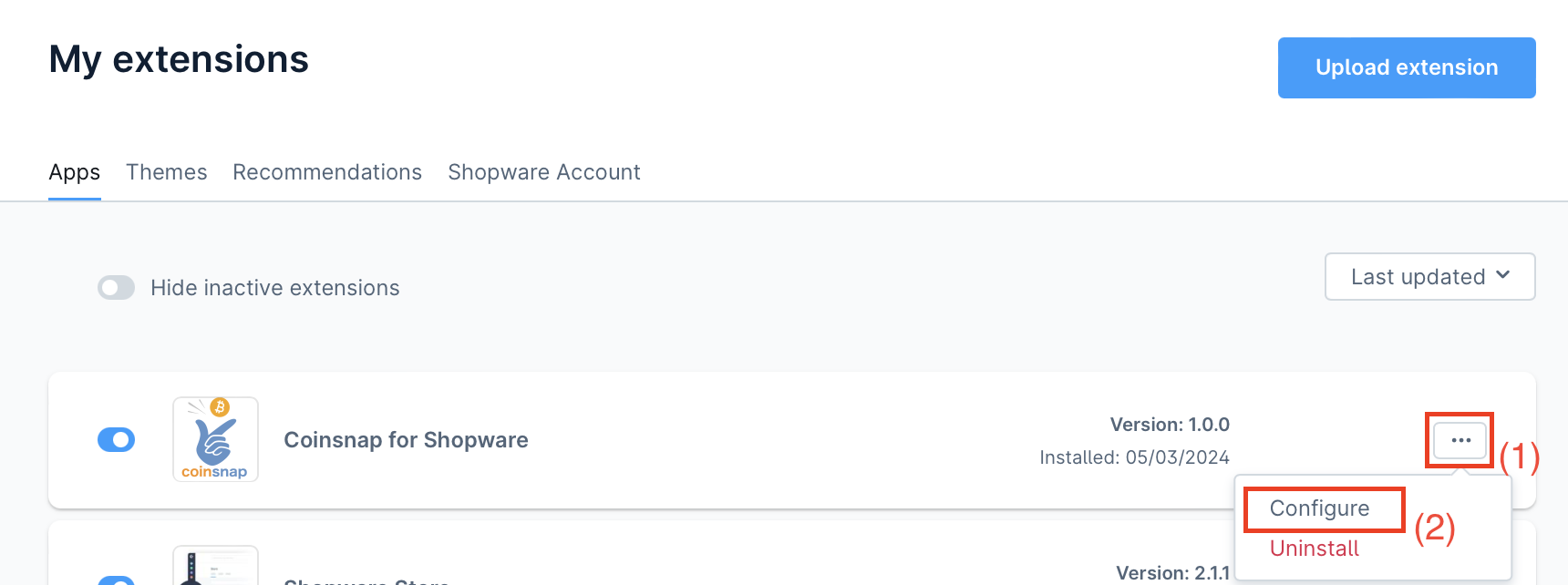
The “Coinsnap for Shopware” extension is available in the “Extensions”> “My extensions” section.
(1) Determination of the configuration process
Click on the three dots on the right-hand side to start the configuration process.
(2) Initialization of the configuration
Click on Configure to start the configuration process.
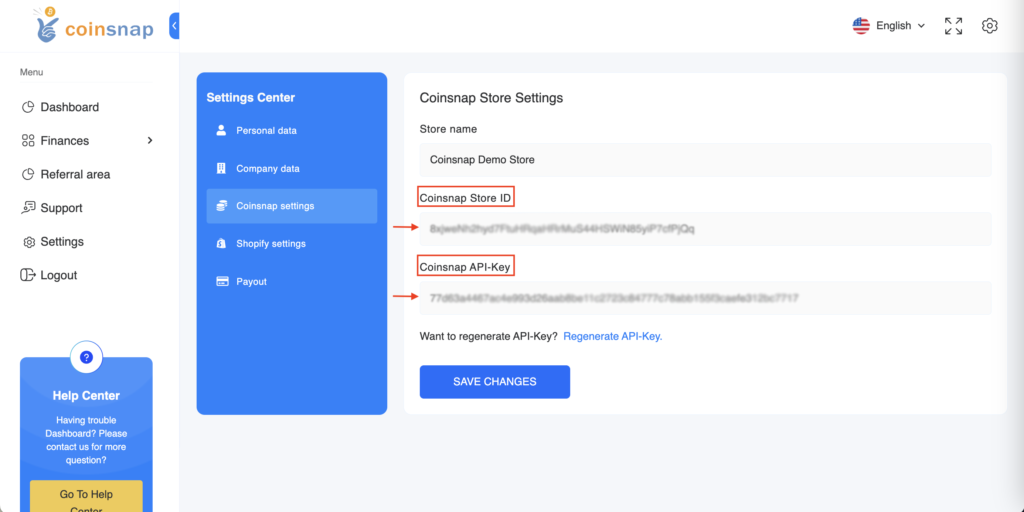
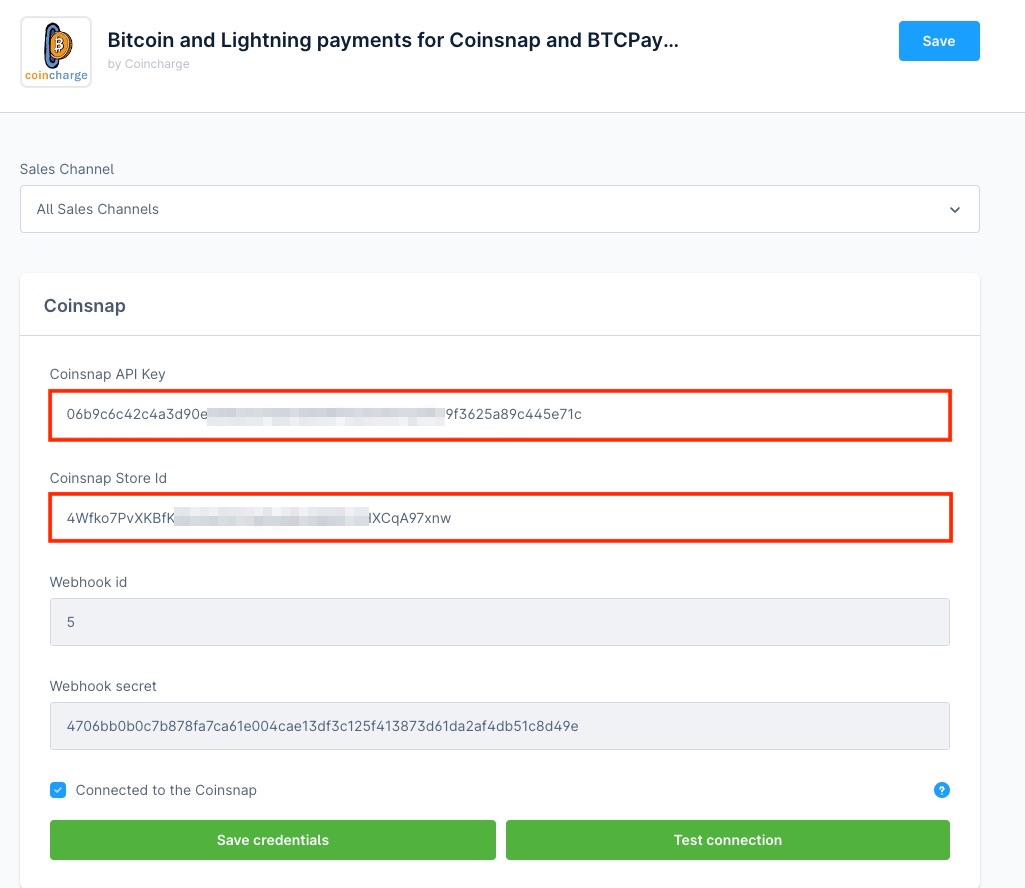
The Coinsnap API Key and the Coinsnap Store ID must be stored in the configuration area.
Go to the Settings menu item in the Coinsnap backend. There you will find the Coinsnap Store ID and the Coinsnap API Key in the Store Settings section.
Then enter the Coinsnap API key and the Coinsnap store ID that you copied from the Coinsnap backend into Shopware.
Then click on “Save credentials”.
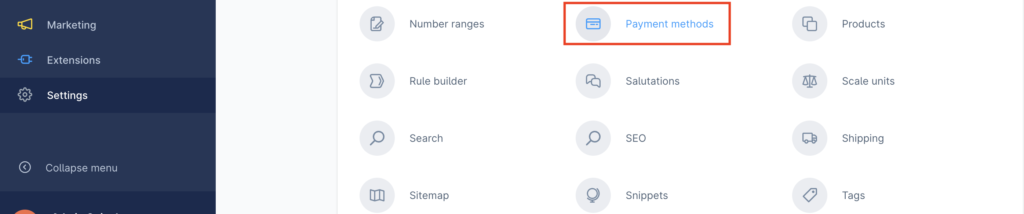
Shopware payment methods settings
In the Settings section, you can navigate to the payment methods to change the notes for the various payment methods. Access is via the Settings menu, which also contains the Payment methods section.


In addition to the standard payment options, Bitcoin and Lightning payment methods are also listed here, which are highlighted in blue when activated.
You have the option of displaying the Bitcoin and Lightning payment methods separately or as a joint payment method.
We recommend using it as a common payment method.
The end customer is then shown a QR code containing both Bitcoin and Lightning.
Regardless of whether the user uses a Lightning or a Bitcoin wallet, payment is possible and unwanted terminations can be avoided.
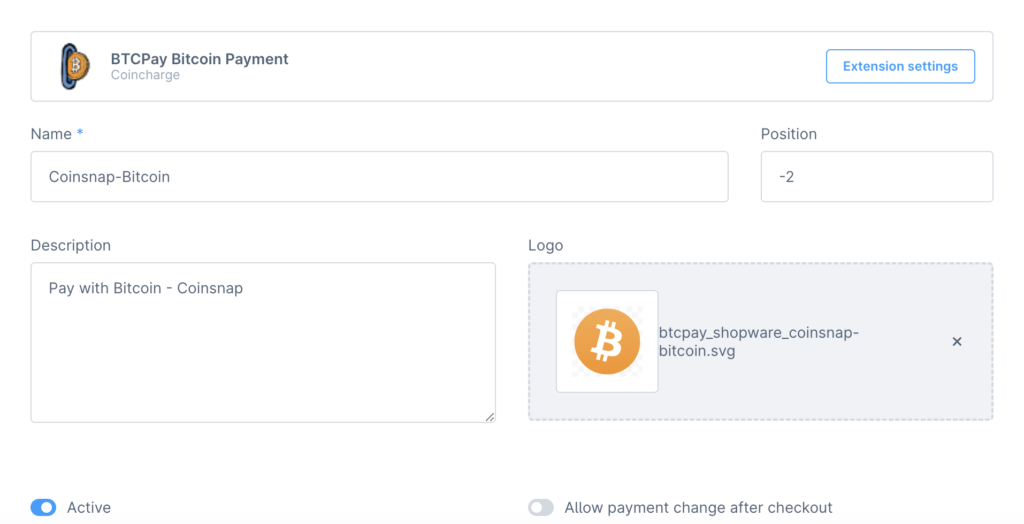
Individual configurations can be made using the “Edit details” option.
This can be used to change the display for the payer, e.g. to “Bitcoin” in our example.
The order of the payment methods displayed, the descriptive text and the associated logo can also be customized. It is recommended to activate the function “Allow change of payment method after completion of the order”.
If someone chooses Bitcoin as a payment method but later decides against it, they can easily switch to another option.
Shopware sales channel settings
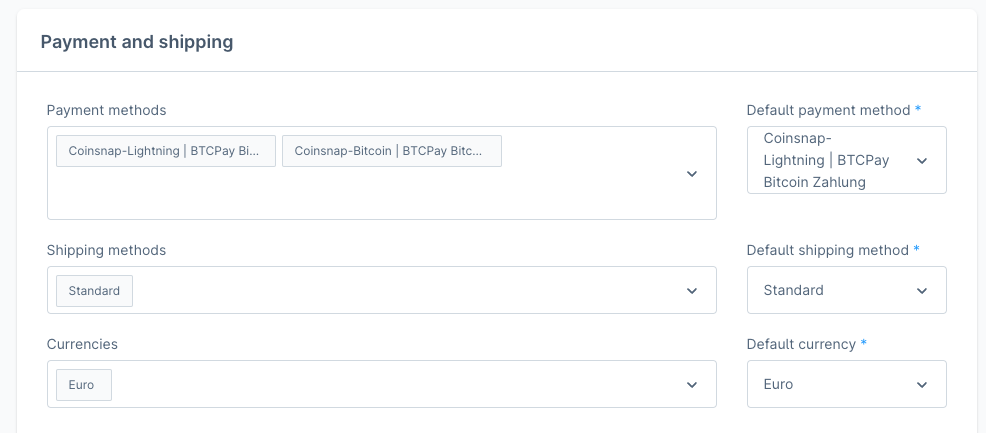
Within the sales channel, the configuration options for payment and shipping can be found under General basic settings, followed by Payment methods.
Here you can select Bitcoin and Lightning as your payment method.
As soon as this is done, these payment methods are activated and can be used in the store.
Shopware Integration Service
The Shopware extension makes integrating Bitcoin and Lightning payment options into a Shopware 6 online store via Coinsnap a simple task.
If you don’t want to install the Coinsnap plugin yourself, we can install Coinsnap for Shopware for you.
To do this, you must grant Coinsnap access to your backend. After installation, please delete Coinsnap as a user.
Log in to your Shopware store in the Shopware Administration Panel.
In the left menu bar, go to Settings. Then click on System and then on Users & Permissions.
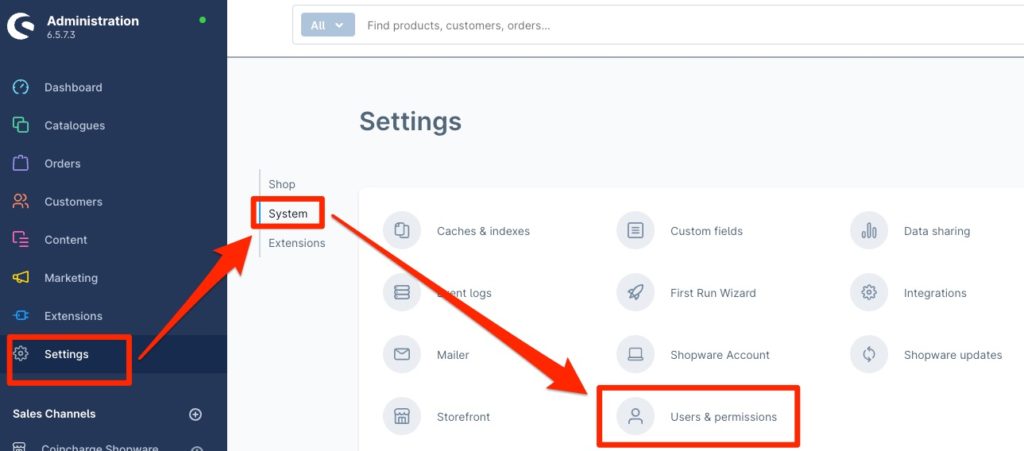
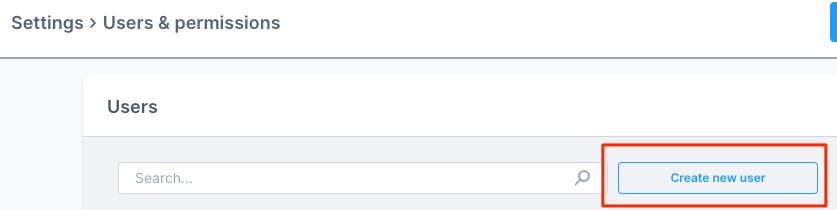
You are in the area for creating users and authorizations.
Here you go to User and click on “Create New User”
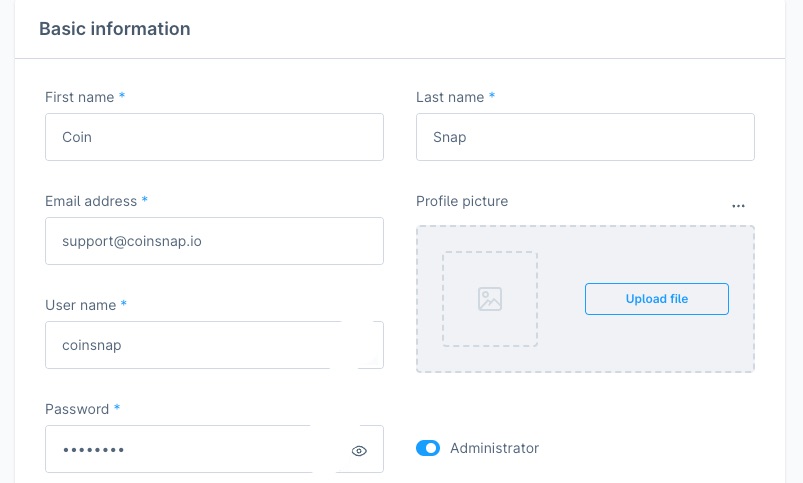
Here you create a new account for the new user Coinsnap.
You can enter the following data:
- First name: Coin
- Last name: Snap
- Email Address: support@coinsnap.io
- User name: coinsnap
- Password: Please create it yourself and tell Coinsnap.
- Administration: Set the button to Administrator to give Coinsnap the required administration rights.
Then click on Save. Shopware will ask you to confirm the creation of the Coinsnap user with your own password.
Please send us an email to support@coinsnap.io and let us know that we can start with the integration.
Please enter the e-mail address you used to register with Coinsnap and the URL of your store.
After Coinsnap has integrated the payment plugins into your store, you must delete the Coinsnap user.