You have now successfully created a Coinsnap account and met all the requirements for using Coinsnap by entering a Lightning address.
In the Coinsnap backend you will find further setting options for Coinsnap and all information on transactions and settlements.
Understanding the Coinsnap dashboard
After you have registered and logged in for the first time, you will be asked to enter the name of your store and your Lightning address. You will then be redirected to the Coinsnap Dashboard.
The Coinsnap Dashboard will then always be displayed when you log in to Coinsnap.
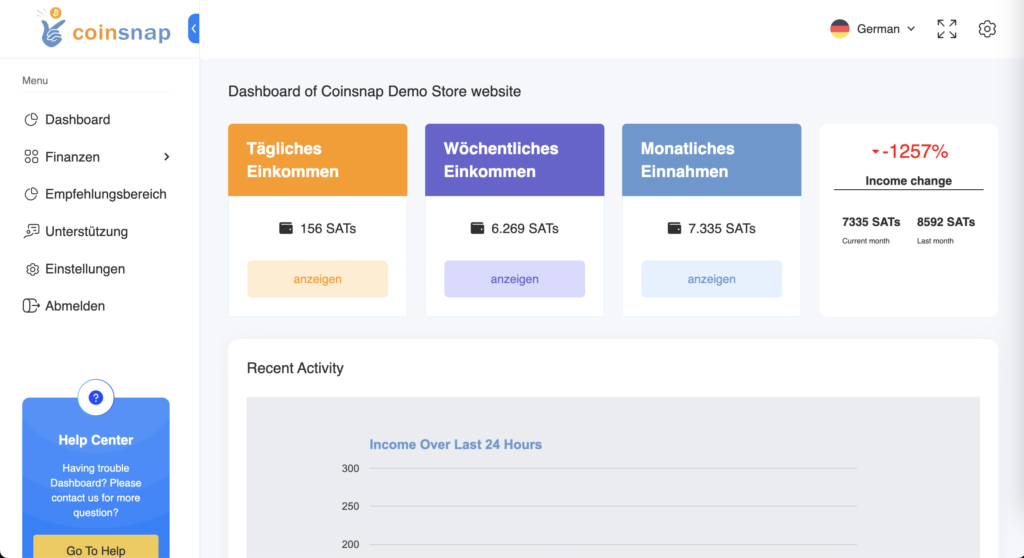
The dashboard provides a quick overview of all Bitcoin and Lightning payments made and can be displayed according to daily, weekly and monthly income.
Transactions
The “Transactions” section contains a list of all transactions carried out. The transactions can be sorted and displayed according to various filters. The fields on the transaction page are explained below:
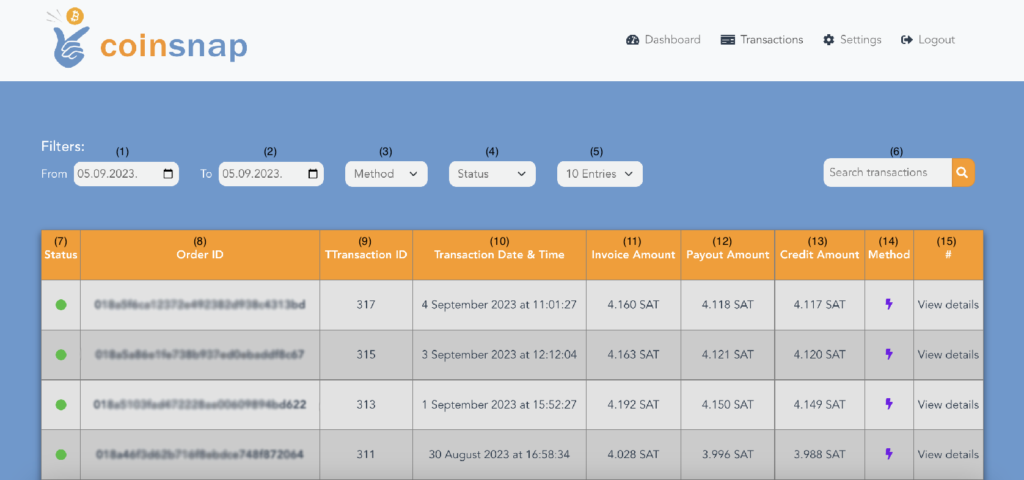
(1) and (2) Filter by date
You can select the start and end date for the display of your transactions.
(3) Payment method
You can sort the payments by Bitcoin and Lightning.
(4) Transaction status
Filter the transactions according to the status “successful”, “pending” or “canceled”.
(5) Show number of transactions
You can display 10, 25, 50 or all transactions at once per page.
(6) Search
Search quickly and easily for a specific transaction.
(7) Transaction status
This refers to the outcome of each order, i.e. whether the merchant has delivered the services to the customer in accordance with the order. The transaction status can be “Success”, “Pending” or “Canceled”.
(8) Order ID
The order ID is a unique identifier that is generated and assigned by the merchant system.
(9) Transaction ID
Coinsnap’s system generates a unique identifier for each transaction displayed in this field. Detailed information about the respective transaction can be displayed by clicking on this transaction ID.
(10) Date display
Date Displays are sorted by date, with the most recent transaction at the top.
(11) Invoice amount
This column shows the amount paid by the end user in satoshis (sats).
(12) Amount paid out
This column shows the amount that will be paid out to the merchant after deduction of the Coinsnap fee. The payout amount is calculated as follows: Payout amount = invoice amount – Coinsnap fee.
(13) Credit note
This column shows the amount that has been credited to the merchant’s Lightning Wallet. This is the payout amount minus the Lightning Network fees charged and deducted by the Lightning nodes that facilitated the transaction. The formula is: Loan amount = payout amount – Lightning Network Fee.
(14) Method
This column shows whether the customer has used the Bitcoin or Lightning payment method.
(15) Detailed transaction
Detailed information on the transactions can be found here.
Accounting
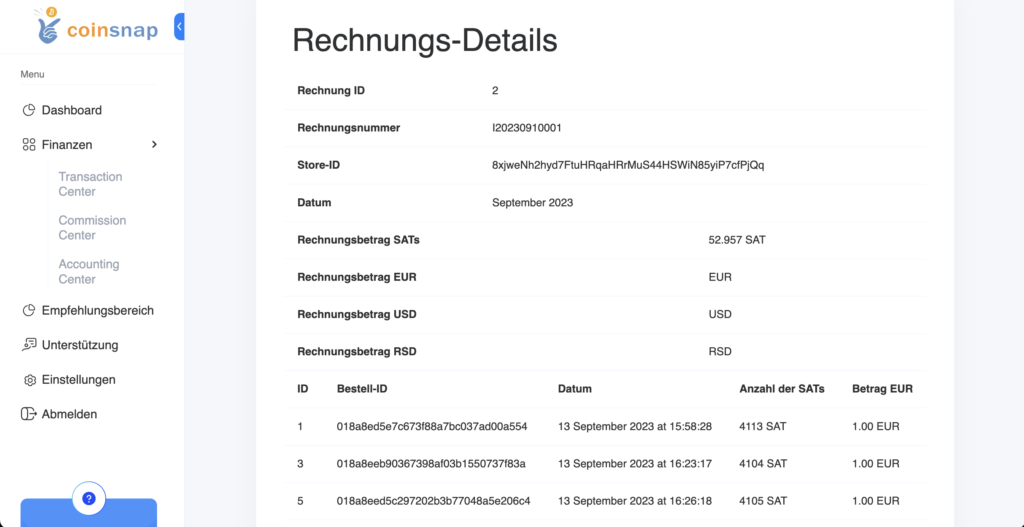
In the Accounting section you will find a list of the monthly invoices for the services provided by Coinsnap.
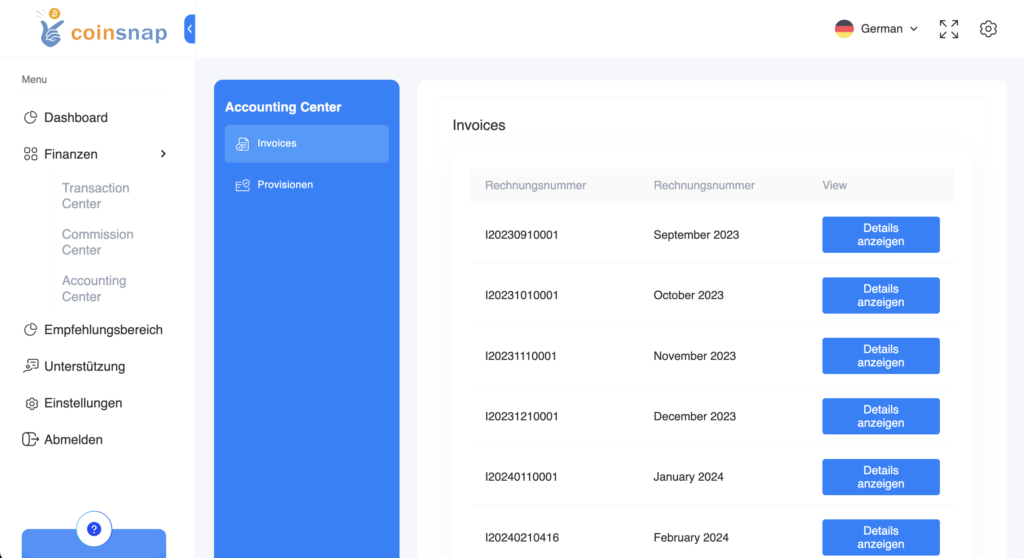
Click on Detail to go to the respective monthly invoice.
The Coinsnap invoice can be downloaded in PDF format.
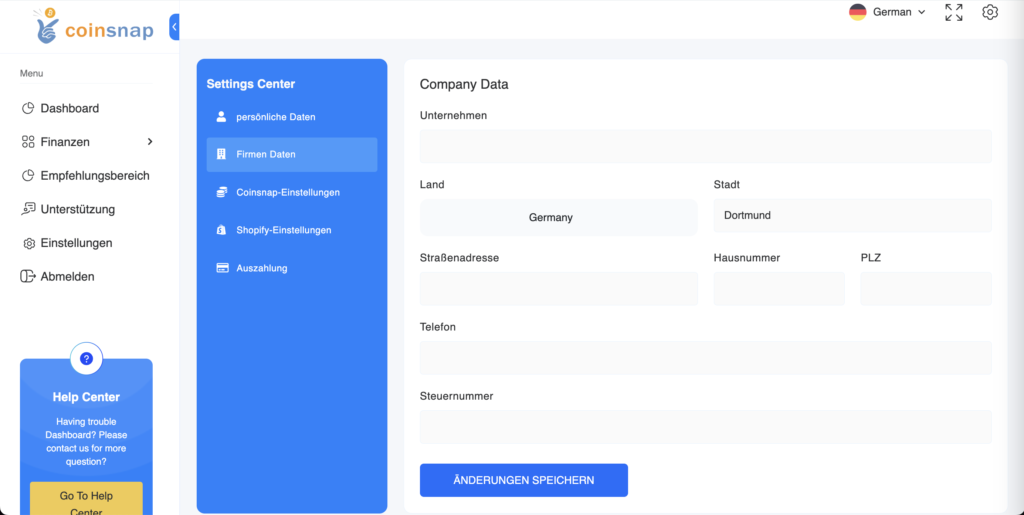
If the invoice is to be issued to a company, enter the company data under Settings and Company Data.
Commissions
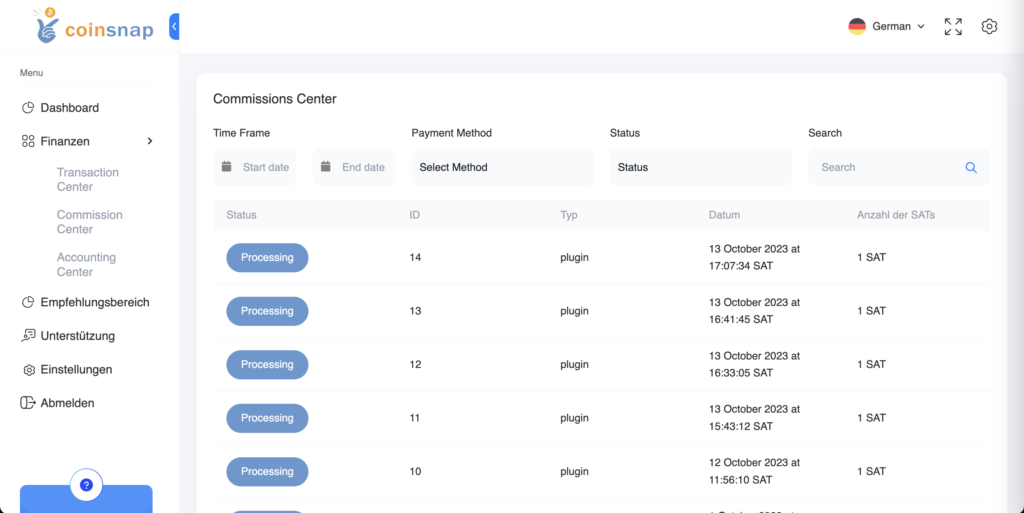
In the Commissions section, you will find a list of the income you have generated by recommending Coincharge.
You use Coinsnap and would like to draw the attention of other store operators to Coinsnap? Then link your website to Coinsnap with the referral link.
You can find your personal referral link under Settings in the Referral section. If a new Coinsnap customer is acquired via your link, you will receive a commission of 0.25% of the turnover generated.
If you still need a Coinsnap logo, you can find it on the Coinsnap Media Page.
Settings
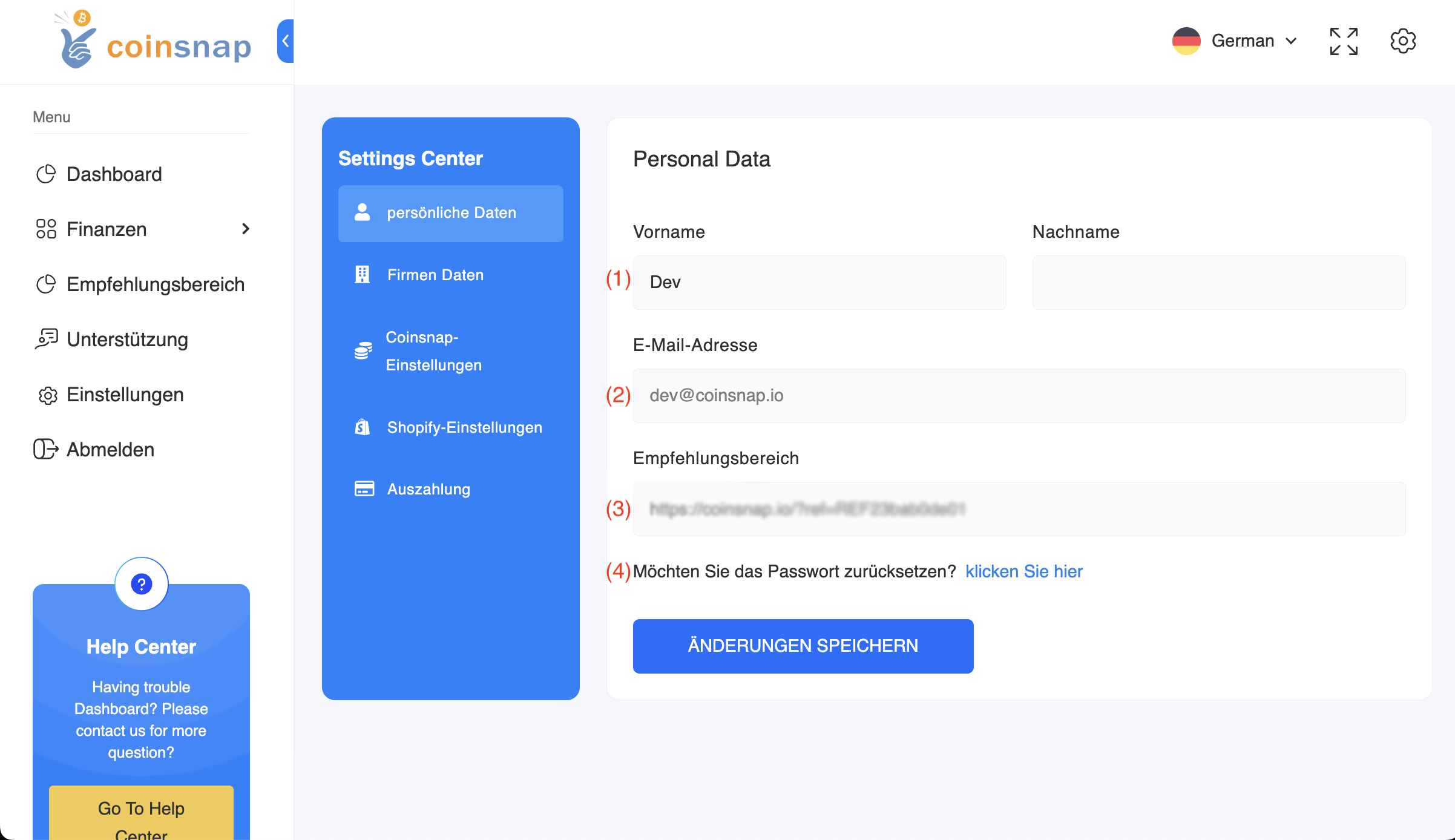
Personal data
(1) Name/Surname
This is a editable field. Your name can be changed after you register with Coinsnap.
(2) E-Mail
The e-mail address used during registration is displayed here. If you have logged in with Lightning Login, this field is empty.
(3) Referral code
You use Coinsnap and would like to draw the attention of other store operators to Coinsnap? Then link your website to Coinsnap with this link.
(4) Password
You can change your password by clicking on this button.
Company data
Here you can optionally enter information about your company. This information is used for invoicing the Coinsnap services. If you need an invoice in the name of your company, fill in the appropriate fields.
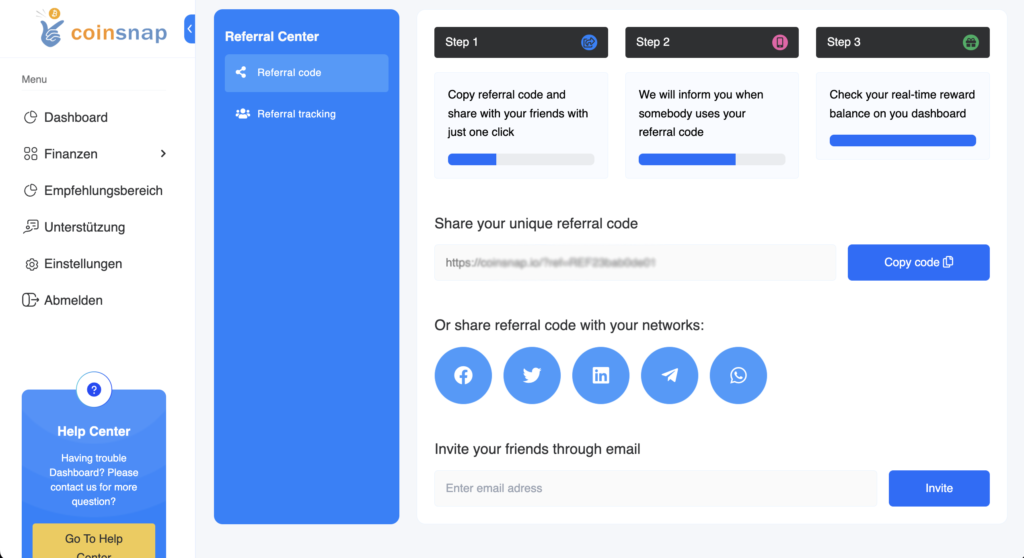
Referral code
You use Coinsnap and would like to draw the attention of other store operators to Coinsnap? Then link your website to Coinsnap with this link.
If a new Coinsnap customer is acquired via your link, you will receive a commission of 0.25% of the turnover generated.
If you still need a Coinsnap logo, you can find it on the Coinsnap Media Page.
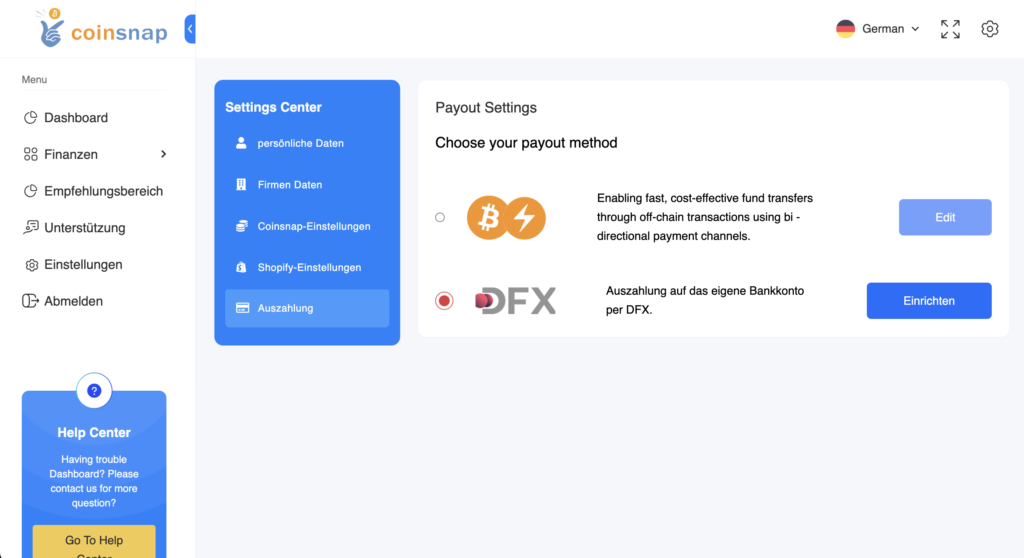
Payout
The payout or forwarding of your customers’ sales is made to the Lightning address stored here. You entered the Lightning address when you registered with Coinsnap.
For security reasons, this Lightning address cannot be changed at a later date. Please contact support if a change is absolutely necessary.
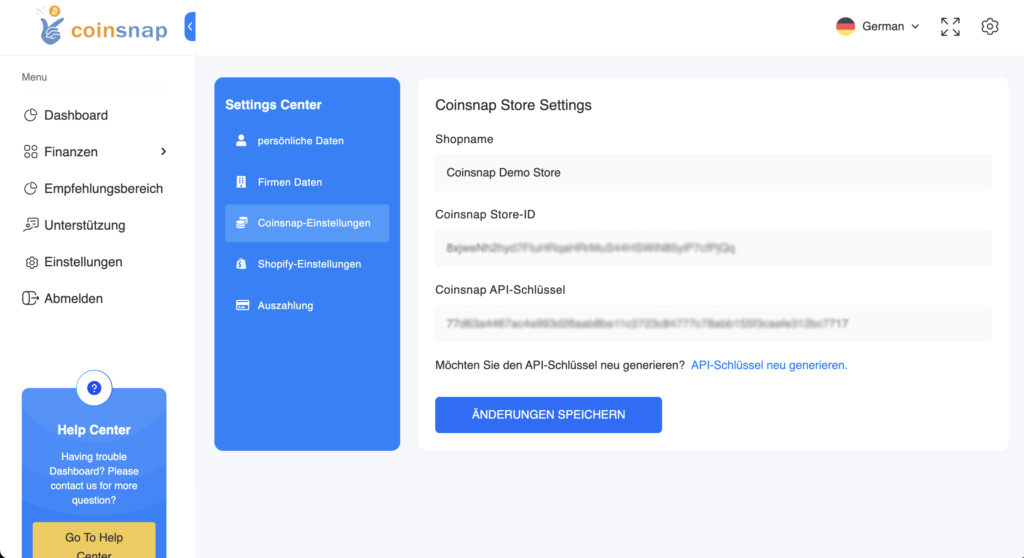
Store settings
Store Name
The name of the store you have linked to Coinsnap is displayed here.
Coinsnap Store ID
Below you will find your personal Coinsnap Store ID, which you need to assign your earnings to your Coinsnap.
Coinsnap API Key
This key is used to connect a plugin to Coinsnap. An API key is like a special password that enables two software applications to communicate with each other. Just as you would change a normal password for security reasons or if you believe it has been compromised, you can create a new API key here.
Regenerating an API key means creating a new key and deactivating the old one. This ensures that the connection remains secure. If someone had unauthorized access to the old API key, they will no longer be able to use it once you have regenerated it.
Shopify settings
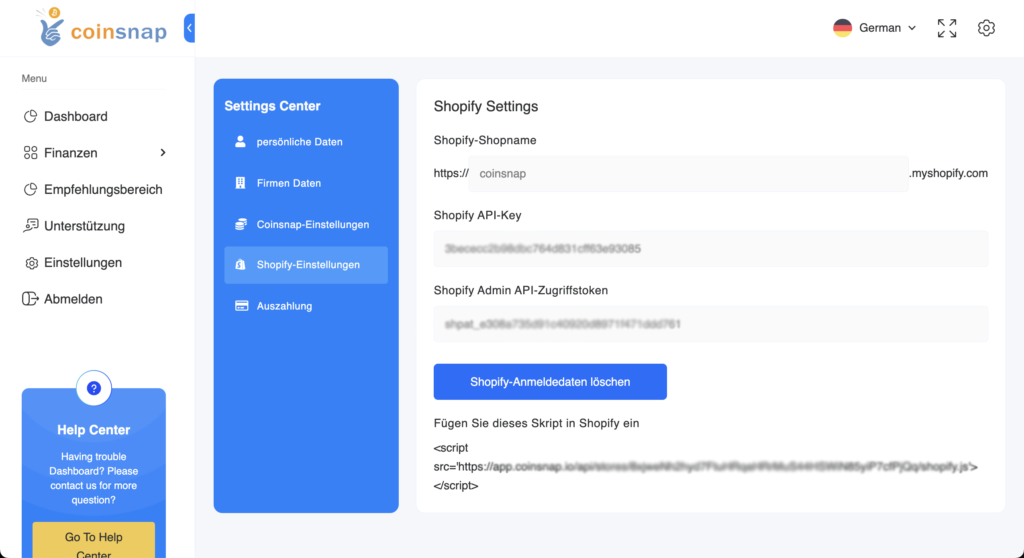
If you want to use Coinsnap in a Shopify store, you must enter the Shopify data here.
In the first line, enter the URL of your Shopify store.
In the second line, enter the Shopify API Key and then the Shopify Admin API Access Token.
We describe how to obtain this data in the Shopify instructions.