
Coinsnap for Shopify
If you operate a Shopify-based online store, integrating Bitcoin and Lightning payment methods is simple with the Coinsnap Shopify app.
Simply install the Coinsnap for Shopify plugin, link it to your Coinsnap account and your customers can pay with Bitcoin and Lightning. All incoming Bitcoin transactions are immediately forwarded to your Lightning Wallet and credited.

Once you’ve registered with Coinsnap and provided your Lightning address, you can begin the Coinsnap setup on Shopify.
This comprehensive guide, accompanied by photos, will walk you through the complete process of linking the Coinsnap app with Shopify.
Instead of integrating Coinsnap into Shopify yourself, you can also use the free Shopify Integration Service. You can find more information on this in the article: Shopify Integration Service.
Shopify Demo Store
If you want to try out for yourself how you can receive Bitcoin and Lightning payments with a Shopify Store, visit our Shopify Demo Store at this link.
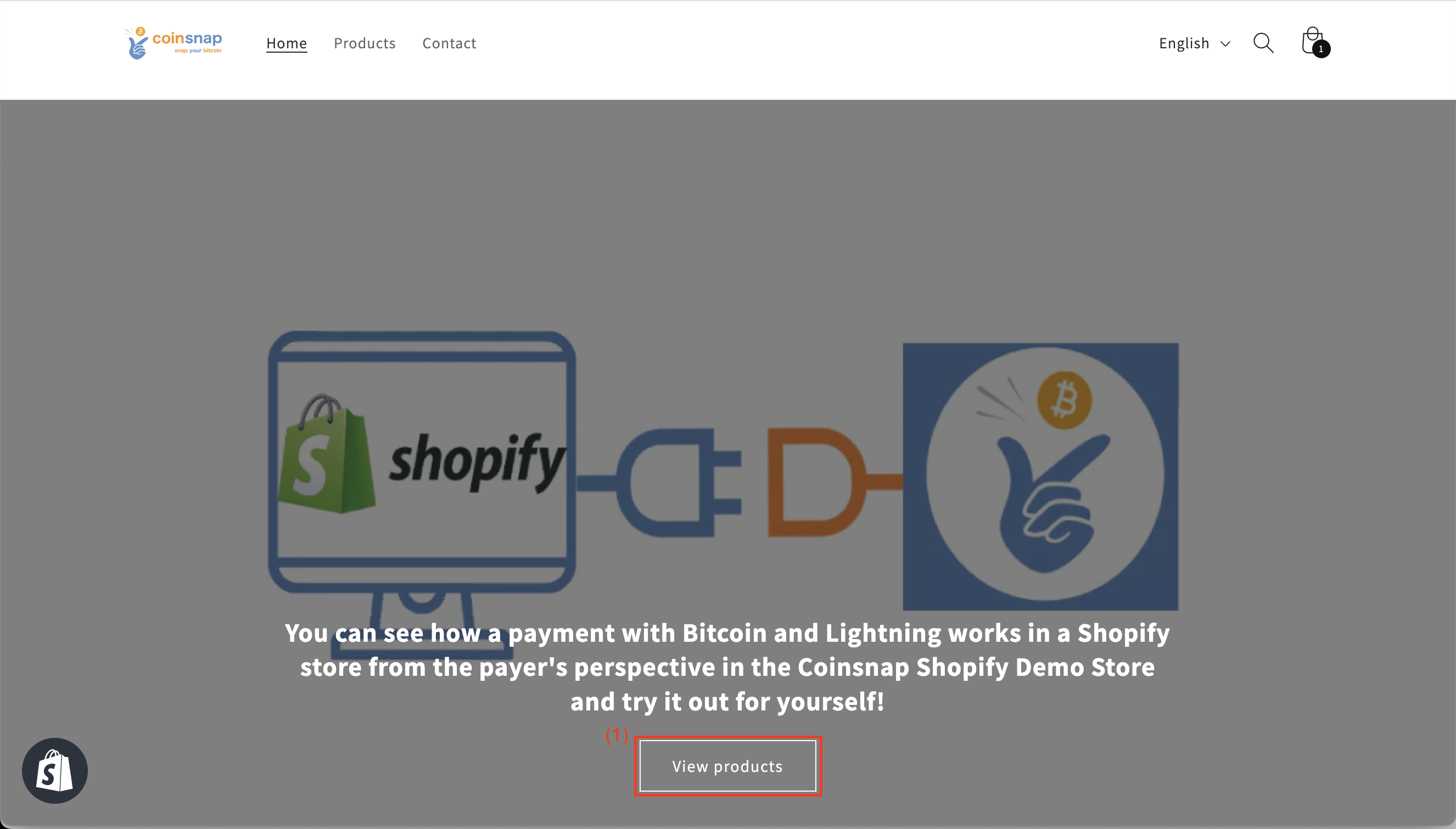
(1) Show all products
Once you have opened the page of our demo shop, click on “View products”. You will then be redirected to our product page where you can select the Coinsnap T-shirt test product.
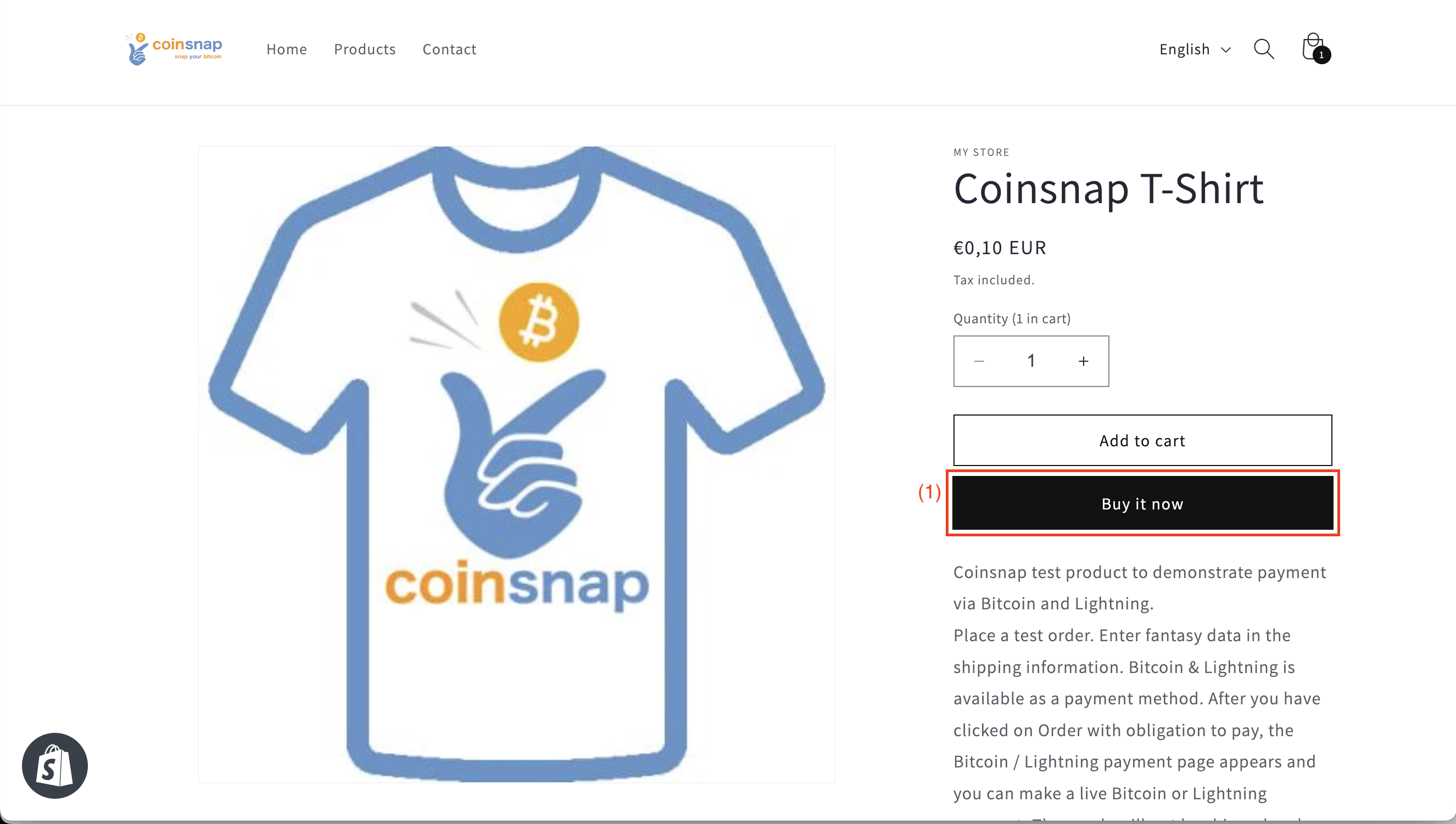
(1) Buy now
Click on the “Buy now” button to start the payment test.
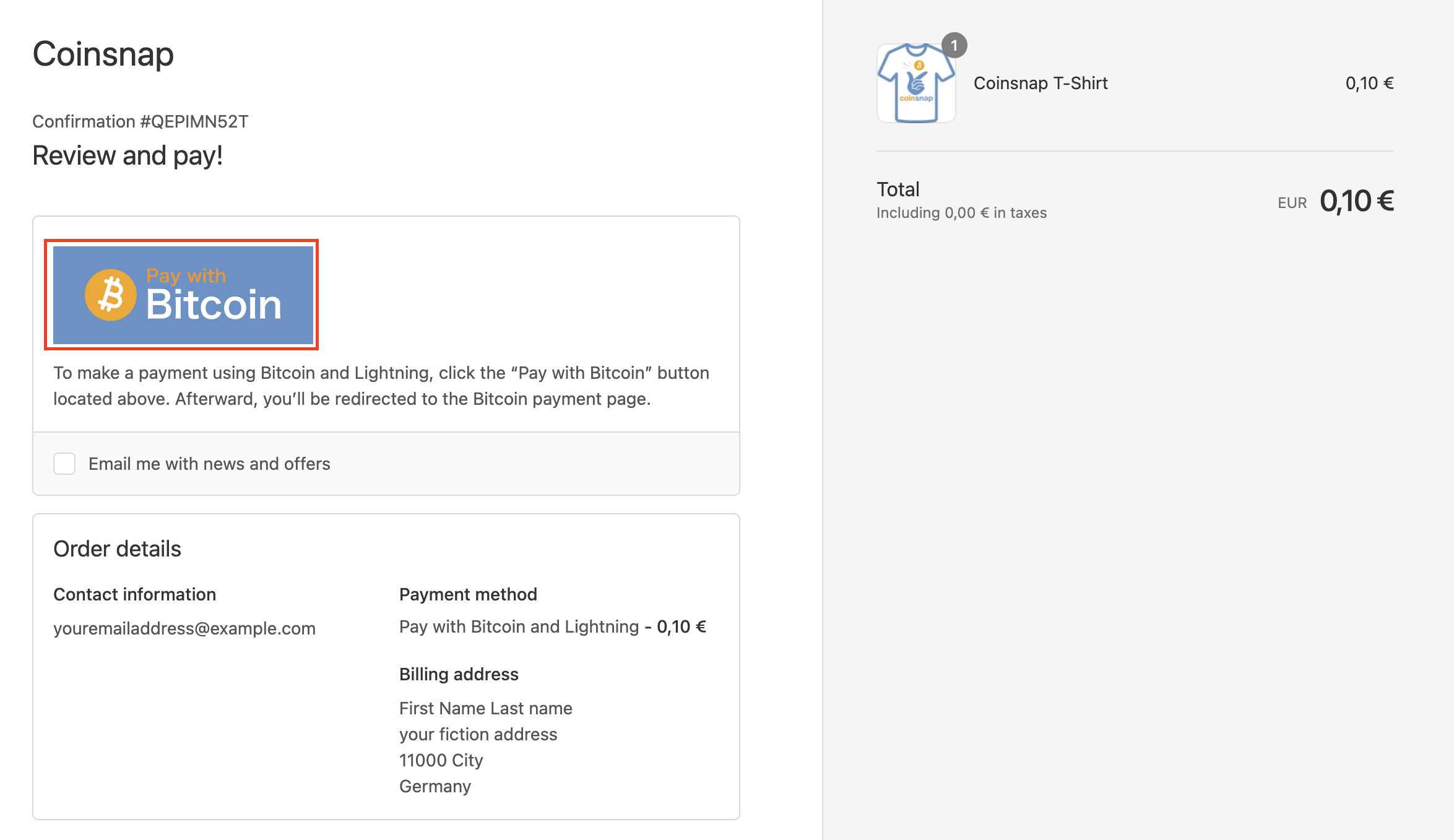
After you have filled in the form with your access data, you will see an overview of your order and the confirmation, which shows you the “Pay with Bitcoin” button.
Click on it to continue!
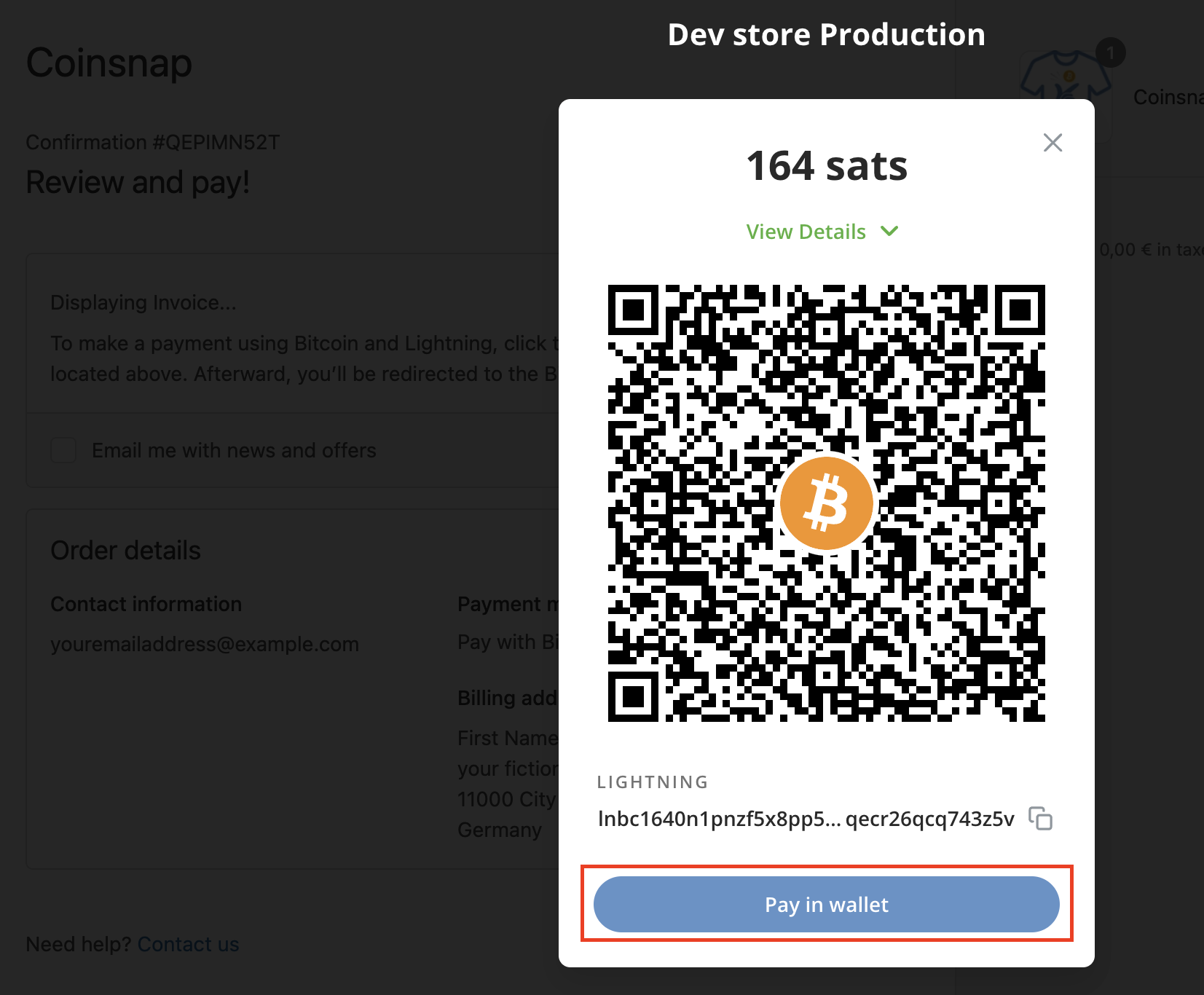
At the end you will receive a QR code that you should scan with your wallet to pay with Coinsnap Bitcoin and Lighhtning!
Set up Coinsnap in your Shopify store system
The Shopify integration of Coinsnap consists of three parts:
1. Setting up the Shopify backend:
Create, install, and manage credentials in the Shopify backend.
2. Linking Shopify with Coinsnap:
Adding admin API access token and API key from Shopify to Coinsnap.
3. Configure the Shopify checkout and payment settings:
Shopify checkout and payment settings
Set up Coinsnap on Shopify
Once registered on Coinsnap, you can log into your Shopify store and access the Shopify backend.
If you haven’t yet set up your Coinsnap account, you can create one using this link.
Upon accessing the Shopify backend, proceed to:
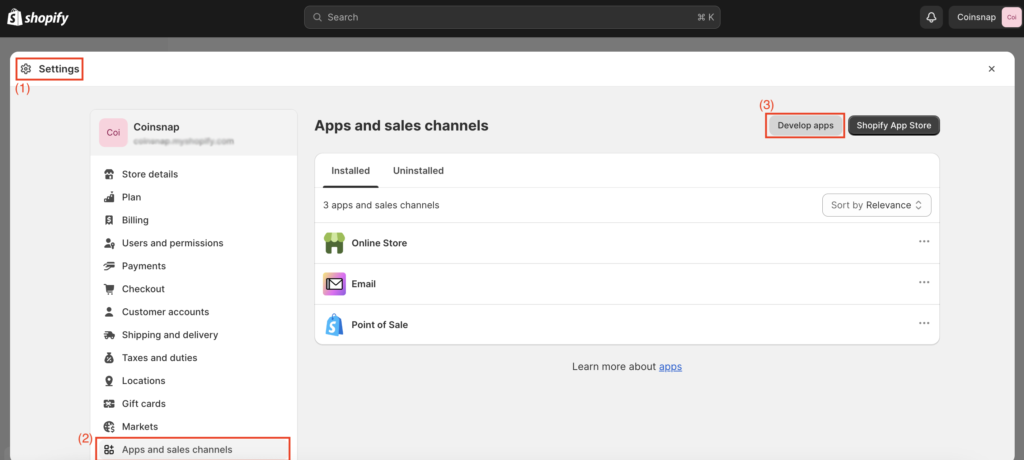
(1) “Settings” > (2) “Apps and Sales Channels” > (3) “Develop Apps”.
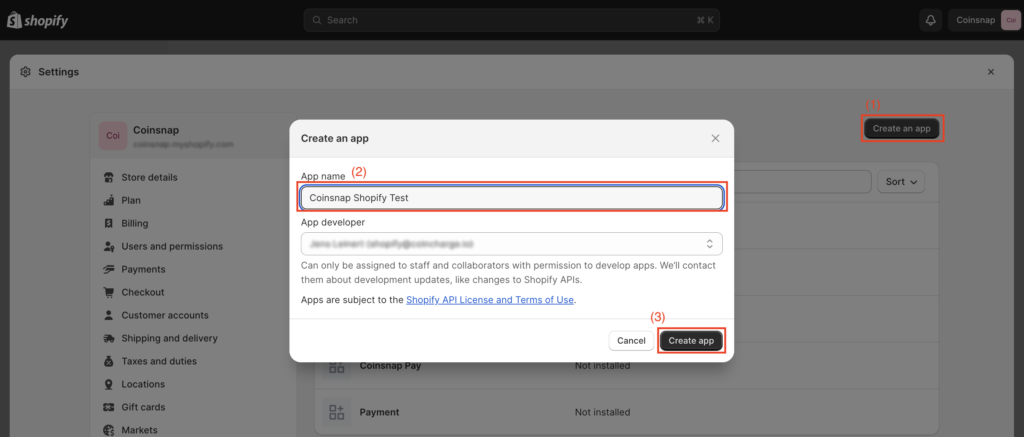
After selecting “Develop Apps,” click on the (1) “Create an App” button.
This will open a window where you can (2) enter the name of your app.
After naming your app click on (3) “Create app” button.
On the app’s main page, under the “Overview” tab, select “Configure Admin API Scopes” (highlighted by a red rectangle in the image).
In the “Filter Admin Access Scopes” field, input “Orders” or simply scroll down to the “Orders” section.

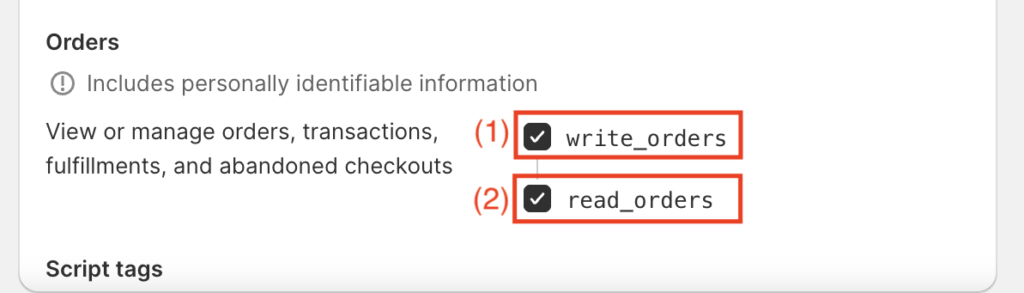
Within “Orders”, enable both (1) “read_orders” and (2) “write_orders”. Once done, click “Save”.
(1) Install App
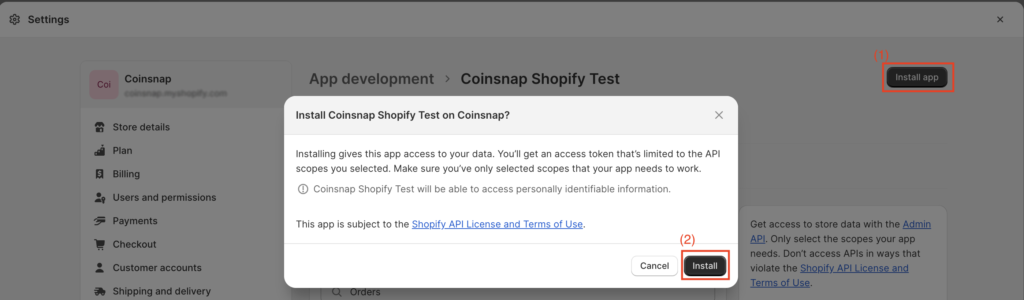
Click “Install App” located at the top right corner.
Once the pop-up window appears, select “Install.” Following this, reveal the Admin API access token and copy it.
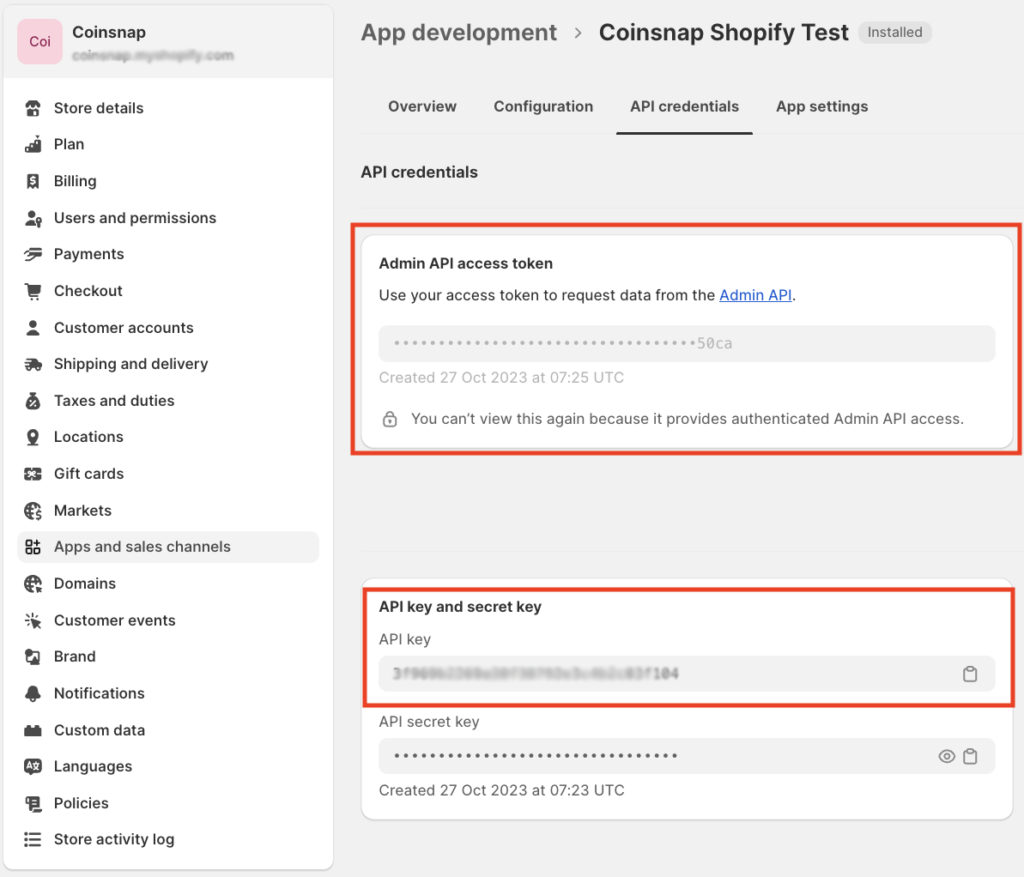
Before we move to the Coinsnap App you need to copy Admin API access token and Shopify API Key.
Those information you will paste on Coinsnap App.
Now, it’s time to transition to the Coinsnap app.
Coinsnap Shopify Settings
Within the Coinsnap app (app.coinsnap.io), navigate to “Settings” > “Shopify Settings.”
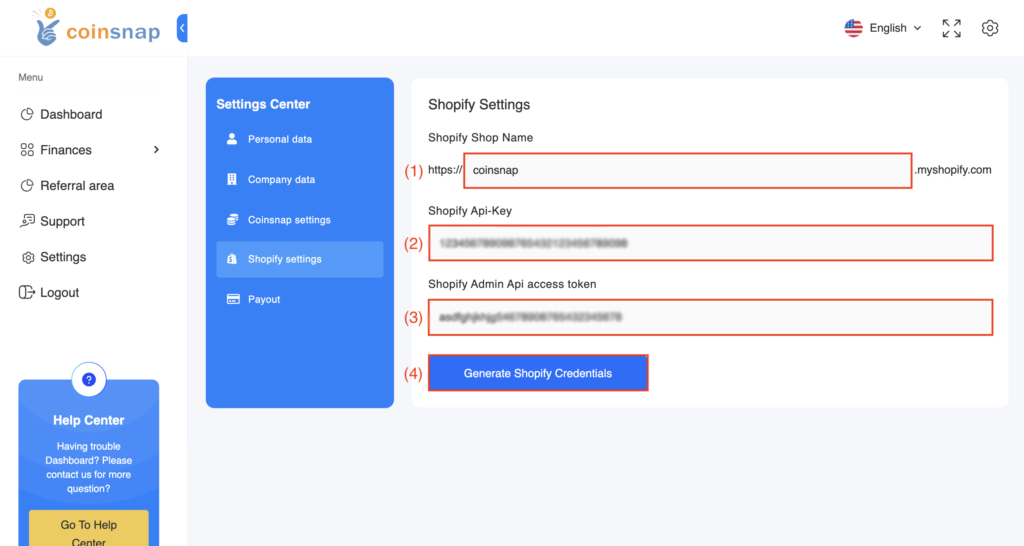
(2) Shopify API Key
For the “Shopify API Key” field, paste the corresponding API key you obtained from Shopify.
(3) Shopify Admin API Access Token
In the “Shopify Admin API Access Token” field, paste the Admin API access token sourced from Shopify.
(4) Generate Shopify Credentials
Press button “Generate Shopify Credentials” to get js-script code which you will provide to Shopify.
(1) Shopify store name
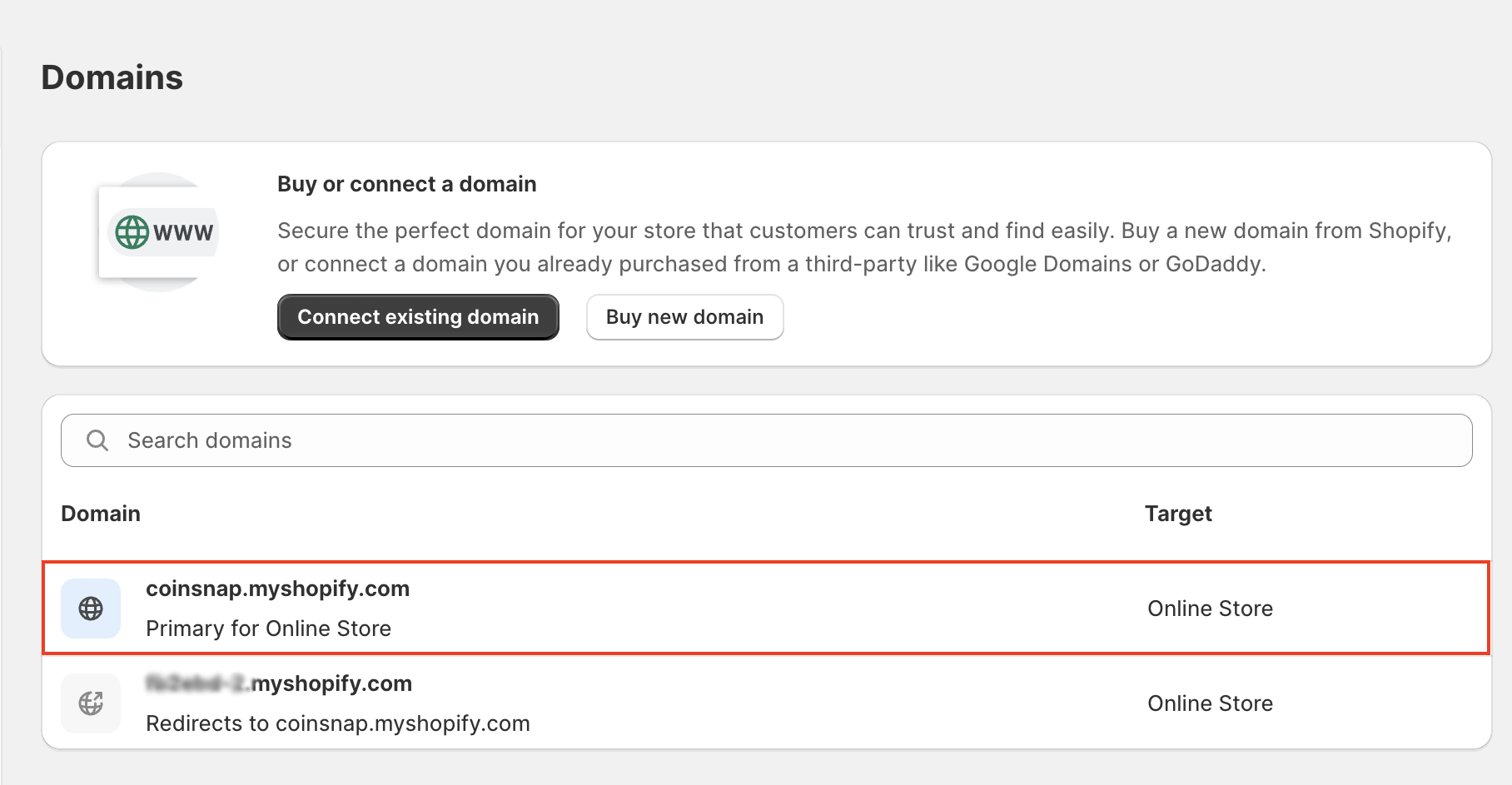
In the first field, enter your Shopify store name. When you need to enter the name of your store go to domain secction of Shopify and find version with “yourstorename.myshopify.com”. The name you see there you need to use on Coinsnap App.
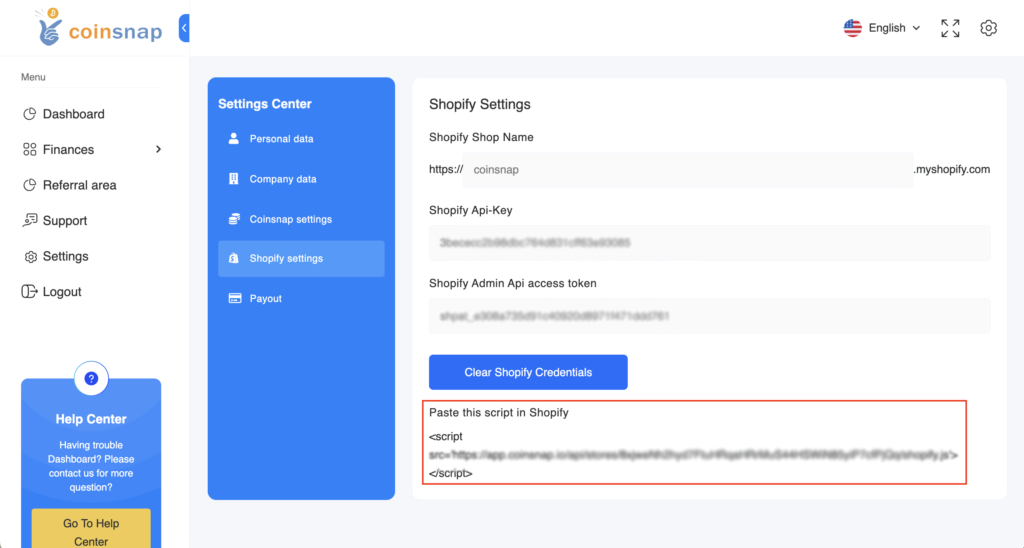
Upon selecting “Generate Shopify Credentials,” a new field will appear.
Click on the “Paste this script in Shopify” field to copy the js-script code. (You’ll know it’s copied when the background turns blue after clicking it with your mouse.)
We then need to paste this script into the Shopify backend.
Shopify payment processing
Once you’ve gathered all the necessary information, return to Shopify.
First, navigate to the “Checkout” section within Shopify’s Store Settings.
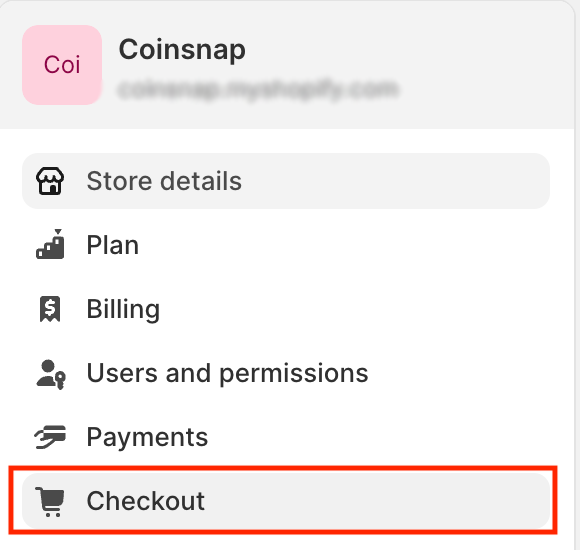
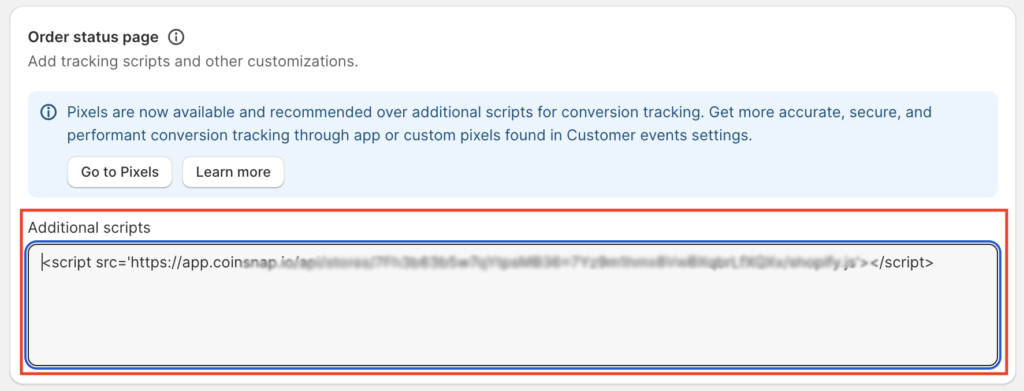
From there, scroll down to find the “Order Status Page” section and locate the “Additional Script” section.
Paste the script code you just created in the Coinsnap backend here, making sure to include both the opening and closing <>
Navigate to the “Payments” section within Shopify’s Store Settings to allow Bitcoin and Lightning payments.
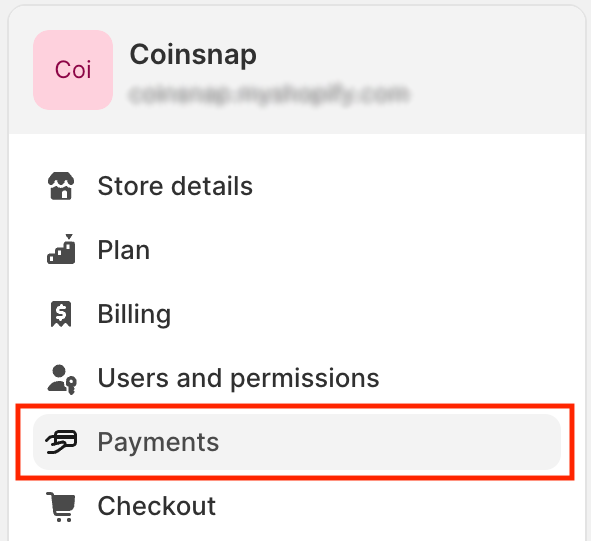
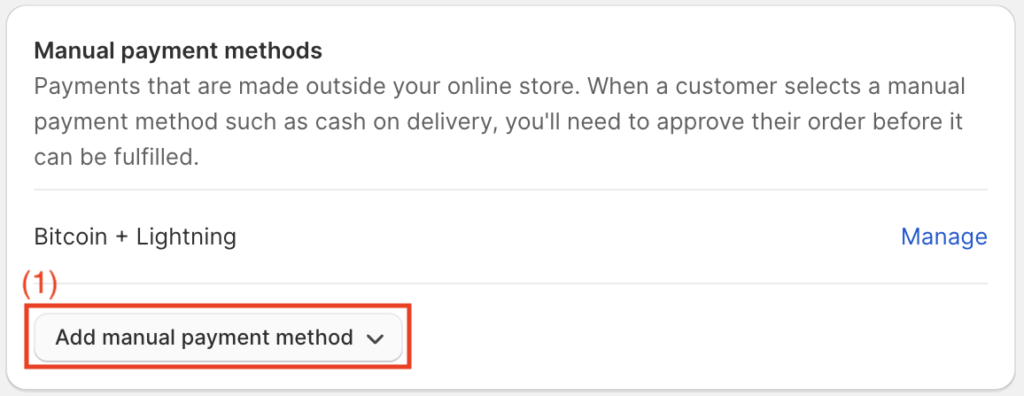
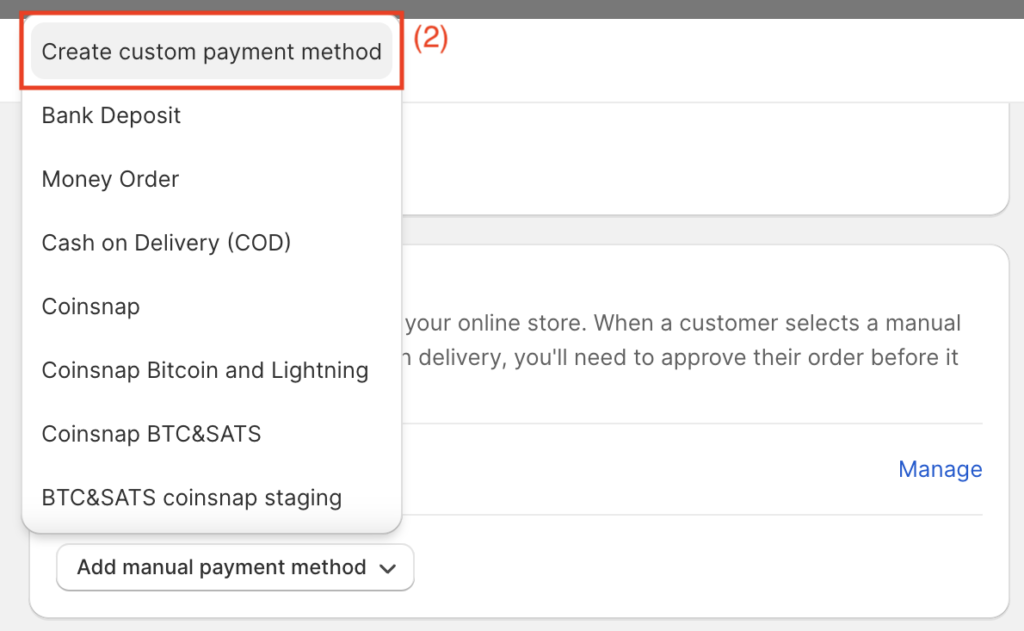
From there, scroll down to find the “Manual payment methods” and click on (1) “add manual payment method”.
(2) Set Up a Custom Payment Method
Select “Create Custom Payment Method” to open a window.
There, you’ll need to provide a name for your payment method and add any optional requirements.
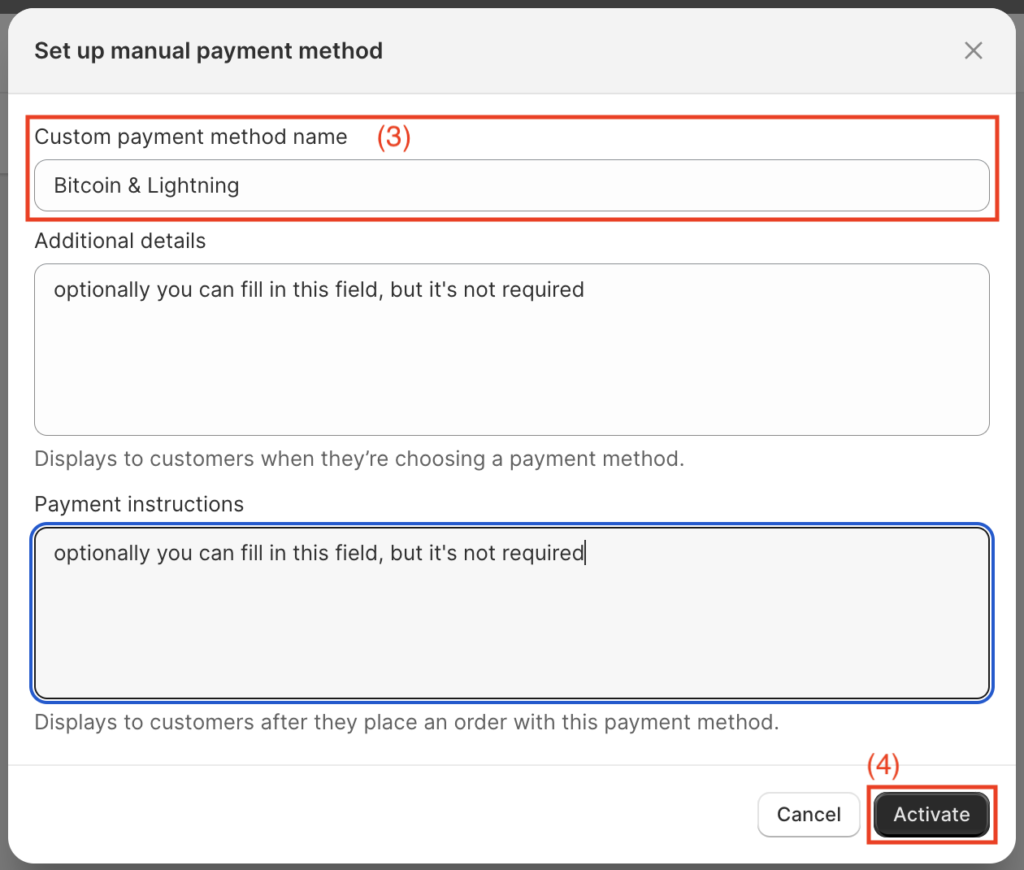
(3) Custom Payment Method Name
Enter “Bitcoin + Lightning” in the “Custom payment method name” field. While there are other optional fields you can complete, they are not mandatory. You can choose the name freely, but you have to make sure that the name is Bitcoin. So you can write. “Pay with Bitcoin”, “Pay with Bitcoin and Lightning” or just “Bitcoin + Lightning”.
Payment instructions
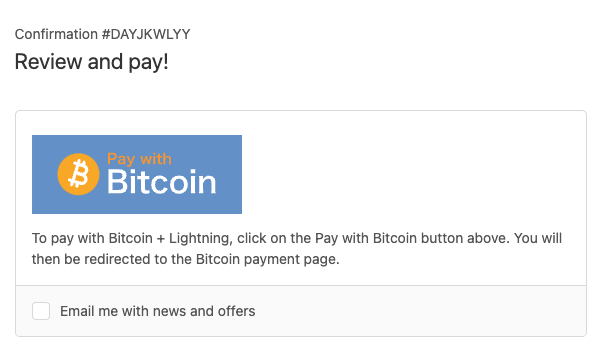
Customers will see the Pay with Bitcoin button on the payment page, which they must click to display the page with the QR code.
An explanatory text can be stored below this Pay with Bitcoin button so that payers are informed about what is to be done in the next step.
This text is stored via the payment instruction. Click on Manage under Manual payment methods.
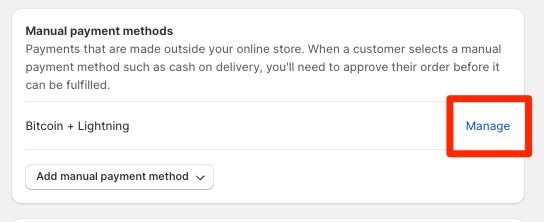
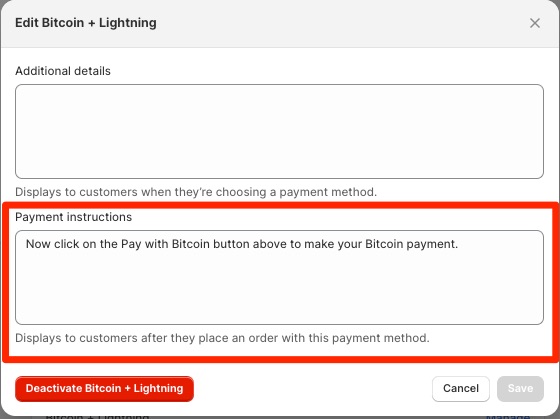
In the Payment Instructions field, you can now enter a text to be displayed to the payer.
For example:
“To make a payment using Bitcoin and Lightning, click the “Pay with Bitcoin” button located above. Afterward, you’ll be directed to the Bitcoin payment page. ” You will then be redirected to the Bitcoin payment page.”
(4) Activation
Finally, click the “Activate” button. You have now successfully set up and connected Shopify and Coinsnap.
Now you can place a test order and check if all functions work correctly.
Coinsnap integration on Shopify
You can also have Coinsnap payment processing integrated into your Shopify store by our partner company Coincharge.
The integration service is free of charge during the introductory phase.
You can find more information in the article Shopify Integration Service