If you use an online shop with WooCommerce, integrating Bitcoin and Lightning payments is easy with the Coinsnap plugin for WooCommerce.
Simply install the plugin, link it to your Coinsnap account and your customers can pay with Bitcoin and Lightning. All incoming Bitcoin transactions are immediately forwarded to your Lightning Wallet and credited.
- WooCommerce Coinsnap Demo Store: https://woocommerce.coinsnap.org/
- Blog Article: https://dev.os24.work/en/coinsnap-for-woocommerce-plugin/
- WordPress: https://wordpress.org/plugins/coinsnap-for-woocommerce/
- GitHub: https://github.com/Coinsnap/Coinsnap-for-Woocommerce

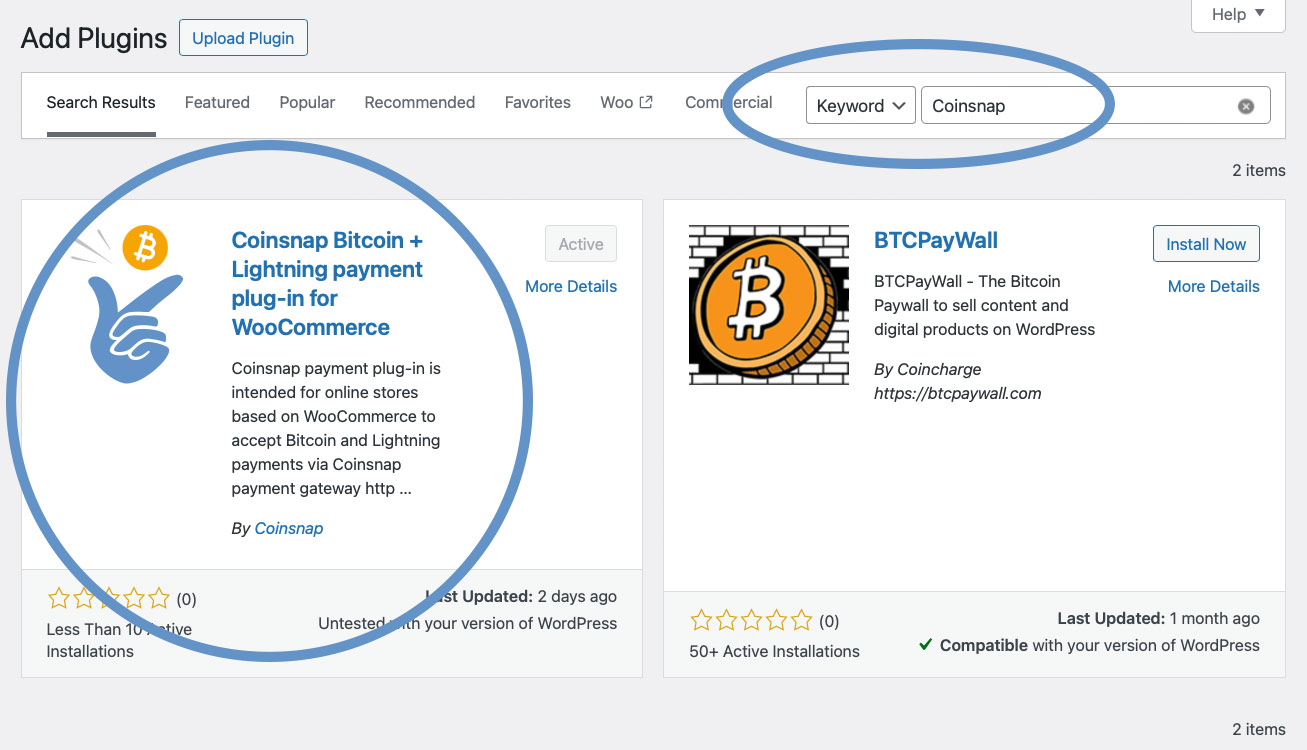
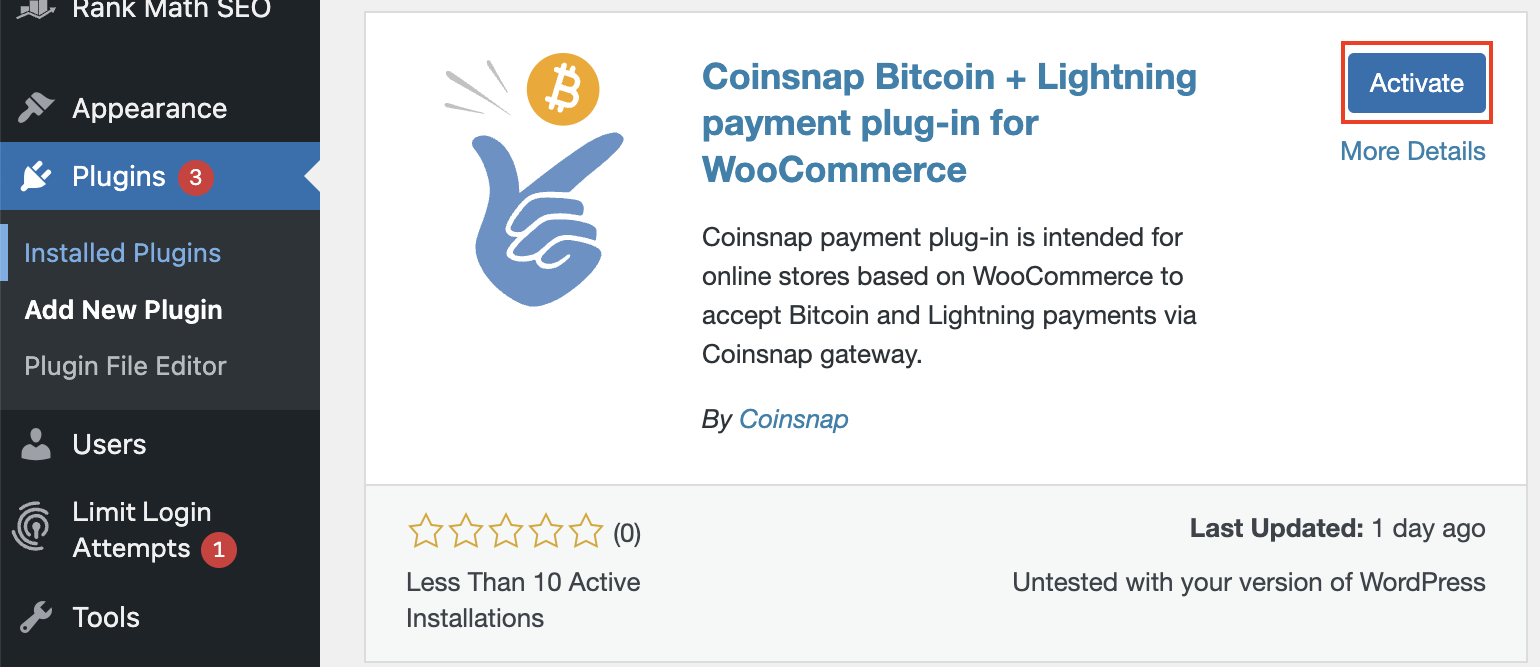
You can easily find the Coinsnap for Woocommerce plugin under Plugins / Add Plugin if you enter Coinsnap in the search field. Simply click on the Coinsnap plugin and WordPress will install it for you.
You then need to activate the plugin and enter your Coinsnap shop ID and API key (both can be found in your Coinsnap account).
And now all your products or offers in your shop can be paid for with Bitcoin Lightning!
So your customers in your WooCommerce store can also
pay with Bitcoin Lightning:
If you would like to try out for yourself how you can receive Bitcoin and Lightning payments with a WooCommerce store, visit our WooCommerce demo store at https://woocommerce.coinsnap.org/.
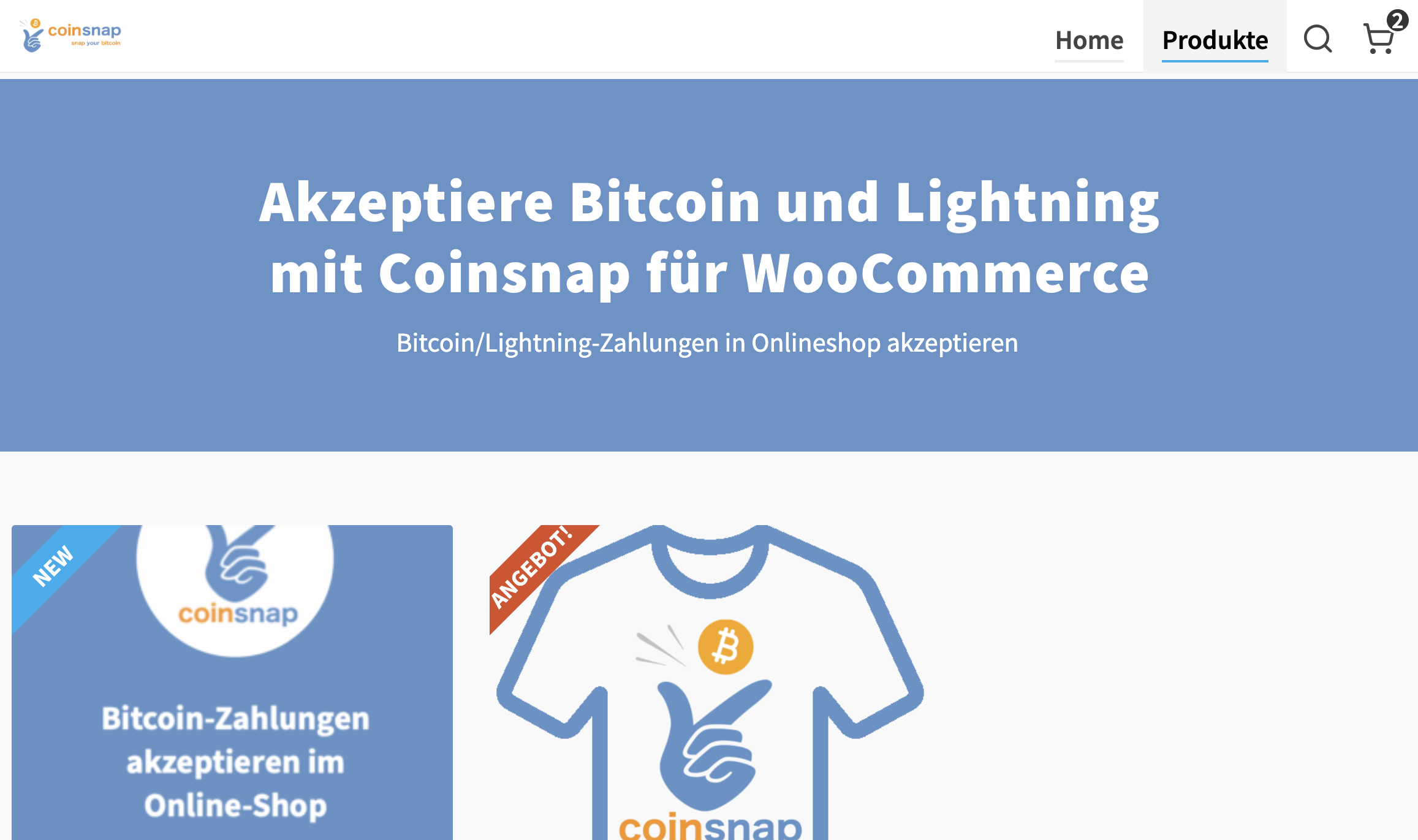
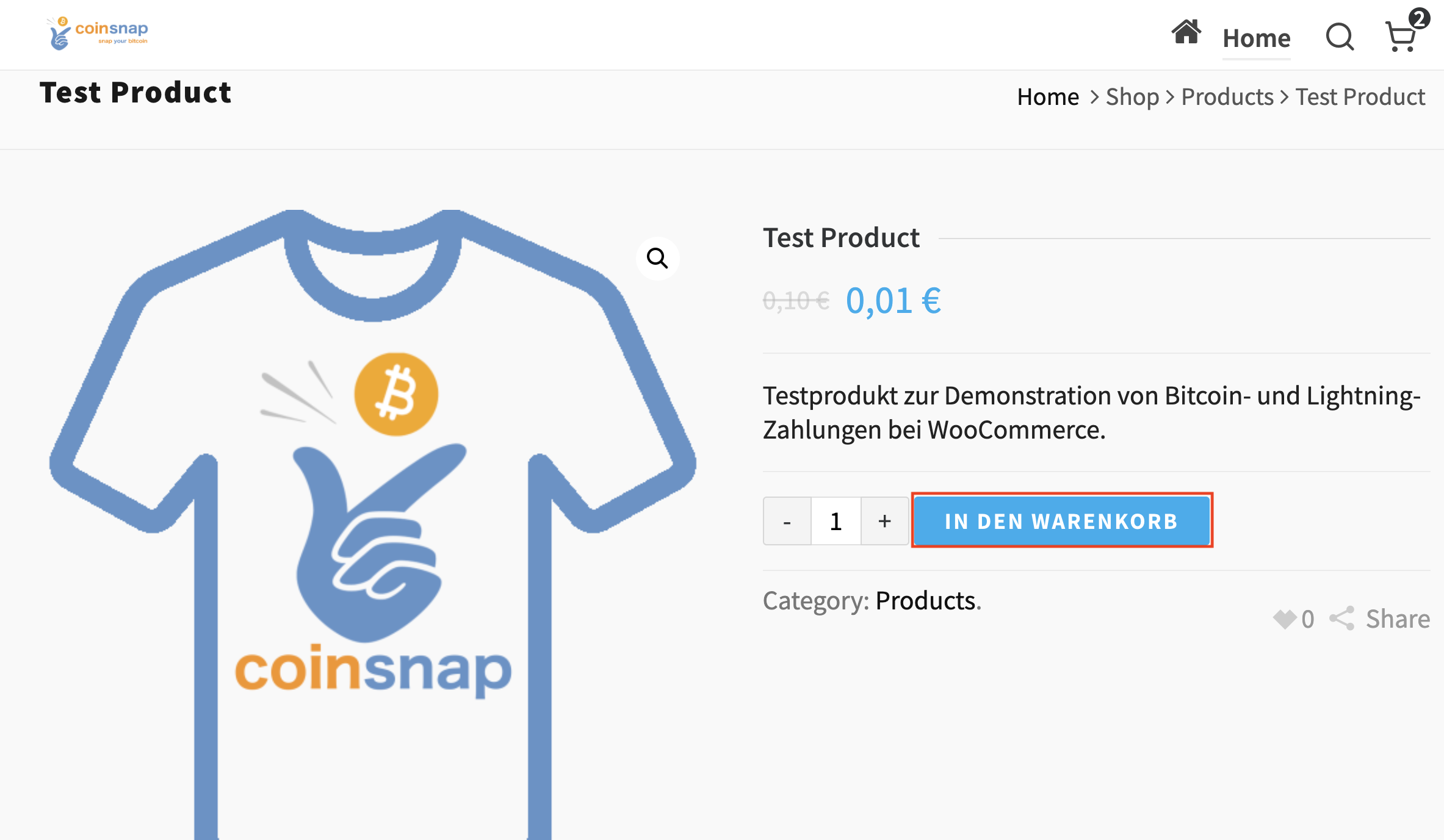
Once you have opened our demo website, scroll down or go to the product section to select one of our demo products and test the plugin.
Click on the product and add it to your shopping basket.
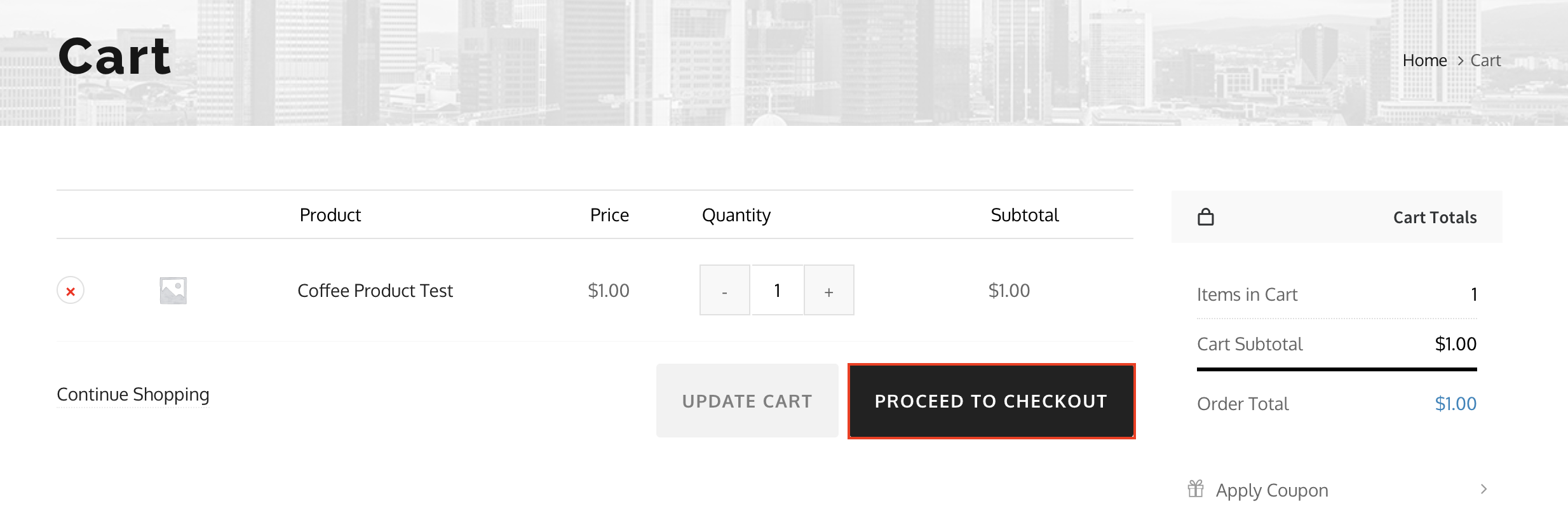
(1) Open the shopping basket
After you have placed the product in the shopping basket, open the shopping basket to continue with the payment.
(2) Click to continue
Click on the “Continue to payment” button.
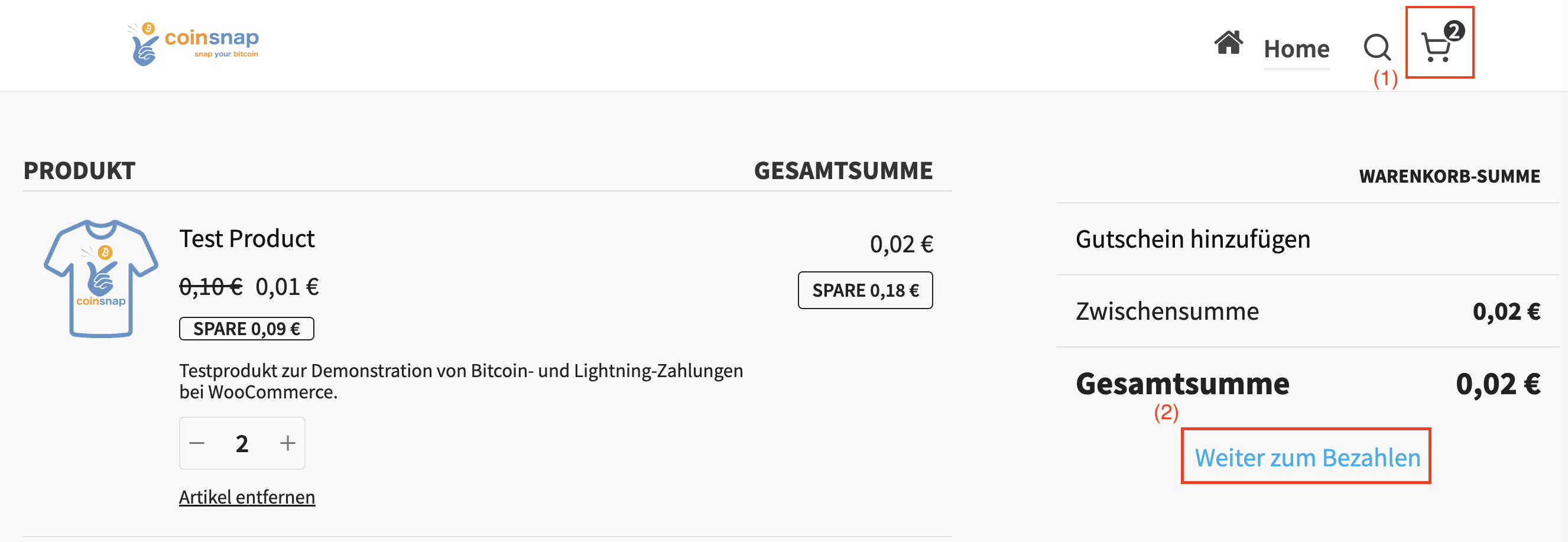
(3) Choose the Bitcoin Lightning payment method
If you click on “Pay now” in the shopping basket, a new window will appear where you have to enter your details (e.g. name and delivery address) and then select the payment method “Bitcoin+Lightning” (see illustration).
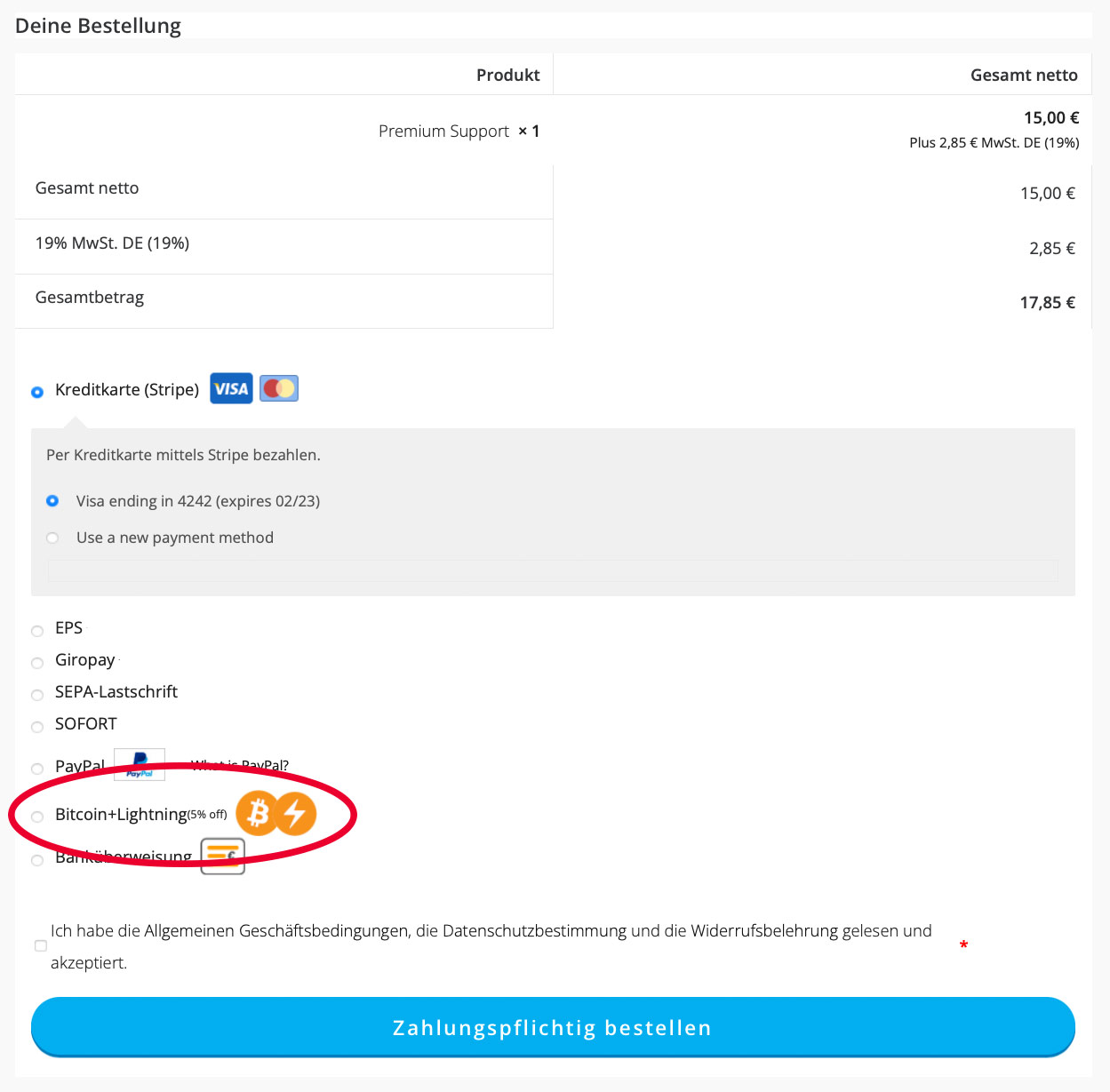
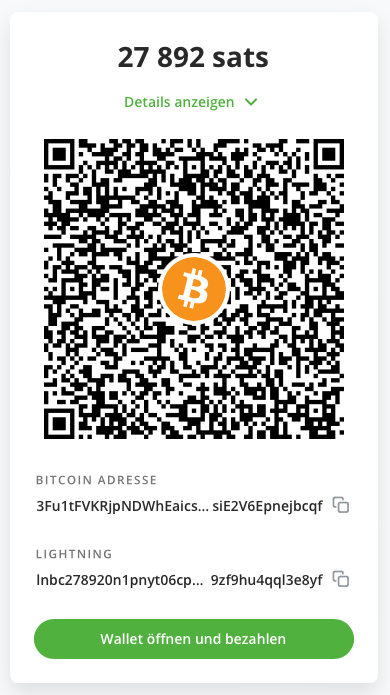
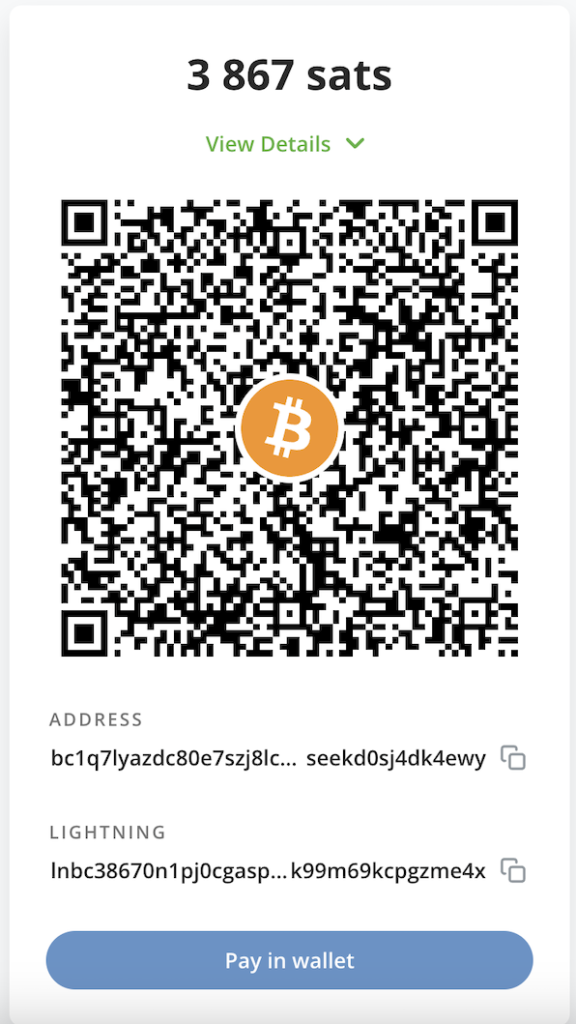
(4) Scan the QR code with your Lightning Wallet
Now all you have to do is scan the QR code that your WooCommerce issues and the purchase amount will be credited to the merchant’s Lightning Wallet in real time!
Coinsnap for WooCommerce plugin
install from the WordPress directory
With the Coinsnap for WooCommerce payment plugin, Coinsnap offers the option of integrating Bitcoin payments quickly and easily into the WooCommerce store. You can download the plugin directly from the WordPress Marketplace or install it directly from within your WordPress installation.
If you have already installed WooCommerce, log in to your WordPress account.
(1) Head to the WordPress backend and go to Plugins > Add New.
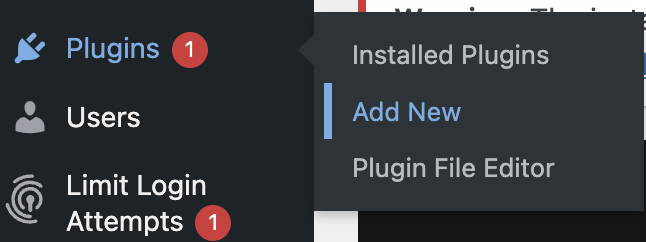

(2) Enter “Coinsnap” in the search bar and click on “Install”.
Then activate the plugin.
The Coinsnap for WooCommerce plugin is now successfully installed and is listed as an additional payment method in the WooCommerce settings under the menu item Payments.
Connect Coinsnap account with WooCommerce plugin
WooCommerce Coinsnap Settings

After you have installed and activated the Coinsnap for WooCommerce plugin, you need to make the Coinsnap settings. You can access this area via WooCommerce and Settings. On the far right you will find Coinsnap Settings.
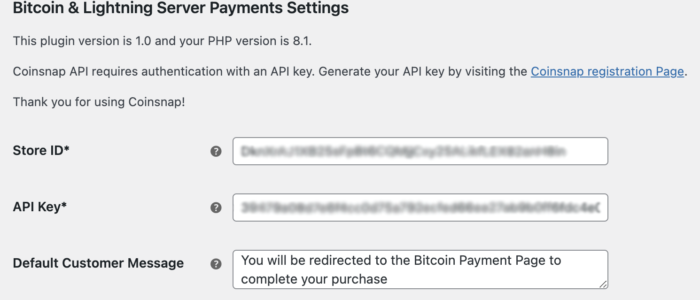
After clicking on the link provided or going to the Coinsnap settings tab, a form will appear asking for your Coinsnap Store ID and your Coinsnap API key.
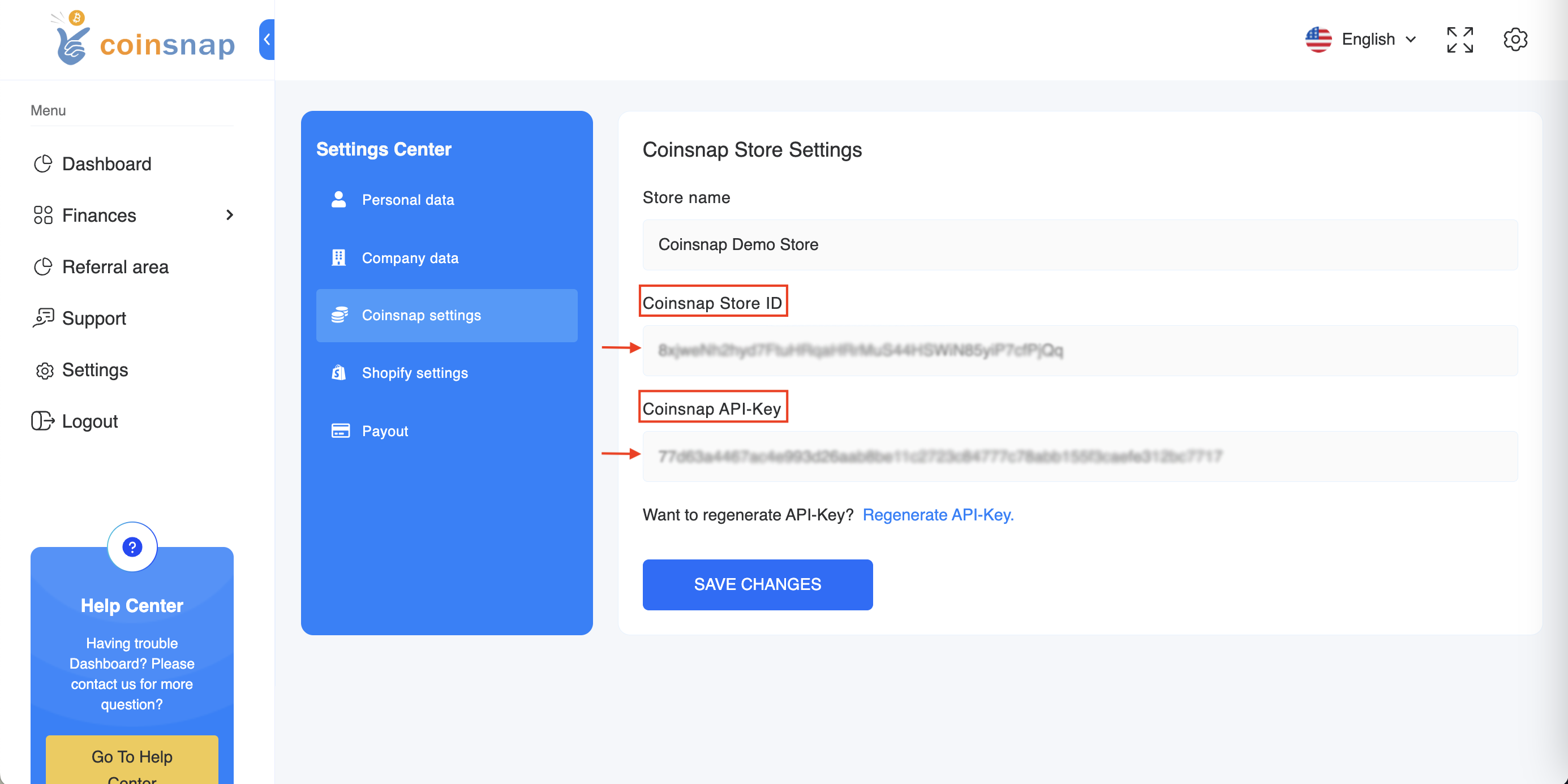
You can find this information in your Coinsnap account in the shop settings section.
If you do not yet have a Coinsnap account, you can register using the following link: Coinsnap registration.
Coinsnap Store Settings
Go to the Settings menu item in the Coinsnap backend.
There you will find the Coinsnap Store ID and the Coinsnap API Key in the Store Settings section.
Click on the “Save changes” button at the bottom of the page to apply and save the settings.
WooCommerce payment settings
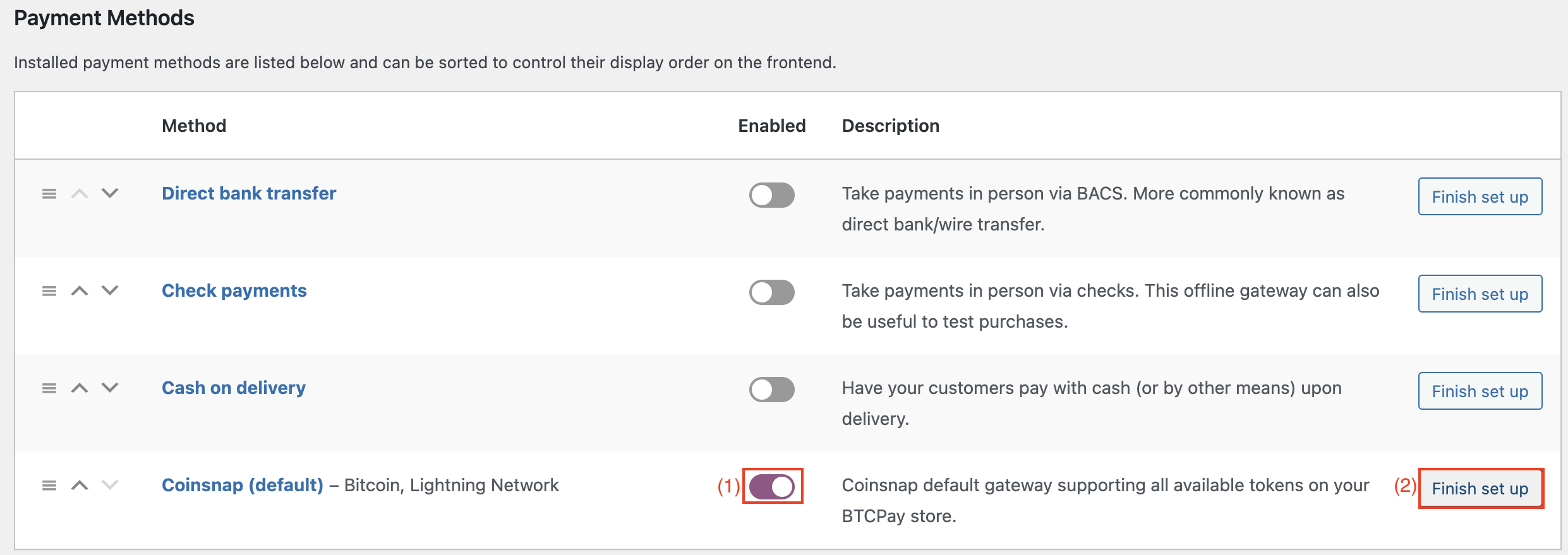
Navigate to the Payment tab under the WooCommerce settings to see a list of all available payment methods.
(1) Activate Coinsnap
You must activate Coinsnap as a payment option.
(2) Additional configurations
To do this, click on the “End setup” or “Manage” button.
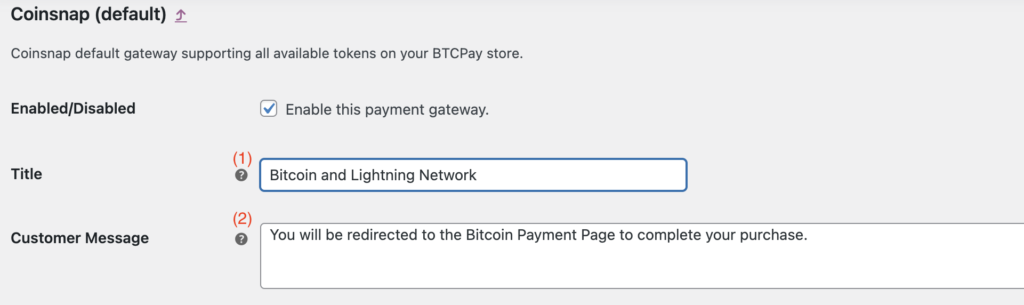
Clicking on “Complete setup” or “Manage” takes you to the page with the detailed settings. Adjustments can be made here, which are displayed to the customer during the payment process.
(1) Title field
In the Title field, for example, you can specify that you accept “Bitcoin and Lightning”.
(2) Notes field
A note can also be entered in the Customer message field to inform the payer of the next steps.

(3) Gateway symbol
By selecting the “Upload or select icon” button, you have the option of adding a personalised icon or image that symbolises a payment gateway or payment method for your online shop. This image serves as a visual indicator for a specific payment option or gateway that is displayed to the customer at the time of checkout.
(4) Enforce tokens
“Enforce payment tokens” refers to a system setting that ensures that only certain types of tokens are accepted for a specific payment method or gateway. This ensures that promotional tokens (which may represent discounts, special offers or other non-traditional forms of payment) are not mistakenly processed as regular payment tokens within this gateway.
Test the payment in the WooCommerce store
After all settings have been made, a test transaction should be carried out.
Place an order in your WooCommerce online store and search for Bitcoin and Lightning Payment among the available payment options.
Choose this method and click on Pay with Bitcoin.
You will be redirected to the Bitcoin payment page to complete the purchase.
The Bitcoin payment page is now displayed and offers the payer the option of paying with Bitcoin or Lightning. Both methods are integrated in the displayed QR code.
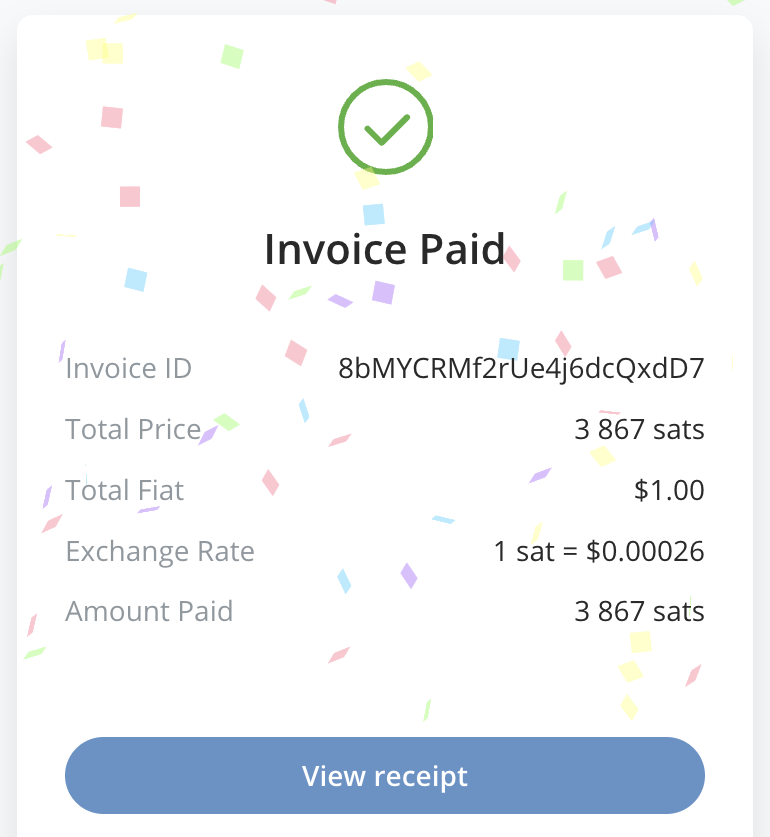
After successful payment, the invoice can be viewed in detail.